
If you watch an Excel expert work, you will notice something strange: they rarely touch the mouse.
Why? Because moving your hand from the keyboard to the mouse and back again creates “micro-delays”. They might only take a second, but if you do it hundreds of times a day, you are losing hours of productivity every week.
Mastering Keyboard Shortcuts is the single fastest way to boost your Excel skills. It transforms you from a casual user into a power user.
In this ultimate guide, we have compiled the top 50+ essential Excel shortcuts for Windows. We have organized them by category so you can learn the ones you actually need.
Whether you are a beginner or an analyst, this list will change how you work.
Why Shortcuts Are Better Than the Mouse
- Speed: Pressing
Ctrl + Cis 3x faster than Right-Click > Copy. - Focus: You stay in the “flow” without looking away from your data.
- Precision: Selecting data with
Ctrl + Shift + Arrowsavoids the mistake of dragging the mouse too far past the end of the table.
Part 1: The “Must-Know” Essentials (The Basics)
You might know some of these, but they are the foundation of everything else. If you don’t use these yet, start here.
- Ctrl + C: Copy selected cells.
- Ctrl + V: Paste content.
- Ctrl + X: Cut content.
- Ctrl + Z: Undo (Your lifesaver).
- Ctrl + Y: Redo (Reverses an Undo).
- Ctrl + S: Save workbook (Press this every 10 minutes!).
- Ctrl + P: Open the Print menu.
- Ctrl + N: Open a new, blank workbook.
- Ctrl + O: Open an existing workbook.
- Ctrl + W: Close the current workbook.
Part 2: Lightning Fast Navigation
Stop scrolling with the mouse wheel. Use these keys to jump instantly across your spreadsheet.
Moving Within a Sheet
- Arrows (↑ ↓ ← →): Move one cell at a time.
- Ctrl + Arrow Key: Jump to the edge of the data region.
- Example: If you are at the top of a column with 1,000 rows,
Ctrl + ↓jumps straight to row 1,000.
- Example: If you are at the top of a column with 1,000 rows,

- Home: Move to the beginning of the row (Column A).
- Ctrl + Home: Jump to cell A1 (Top left).
- Ctrl + End: Jump to the last used cell in the worksheet (Bottom right).
- Page Up / Page Down: Move one screen up or down.
- Alt + Page Up / Page Down: Move one screen to the left or right (Horizontal scroll).
Moving Between Sheets
- Ctrl + Page Down: Switch to the next sheet (tab).
- Ctrl + Page Up: Switch to the previous sheet (tab).
Part 3: Selecting Data Like a Pro
Highlighting thousands of rows with a mouse is slow and inaccurate. Use Shift to select.
- Shift + Arrow Key: Extend selection by one cell.
- Ctrl + Shift + Arrow Key: Extend selection to the last non-empty cell.
- Pro Move: To select an entire table column, click the top cell and press
Ctrl + Shift + ↓.
- Pro Move: To select an entire table column, click the top cell and press
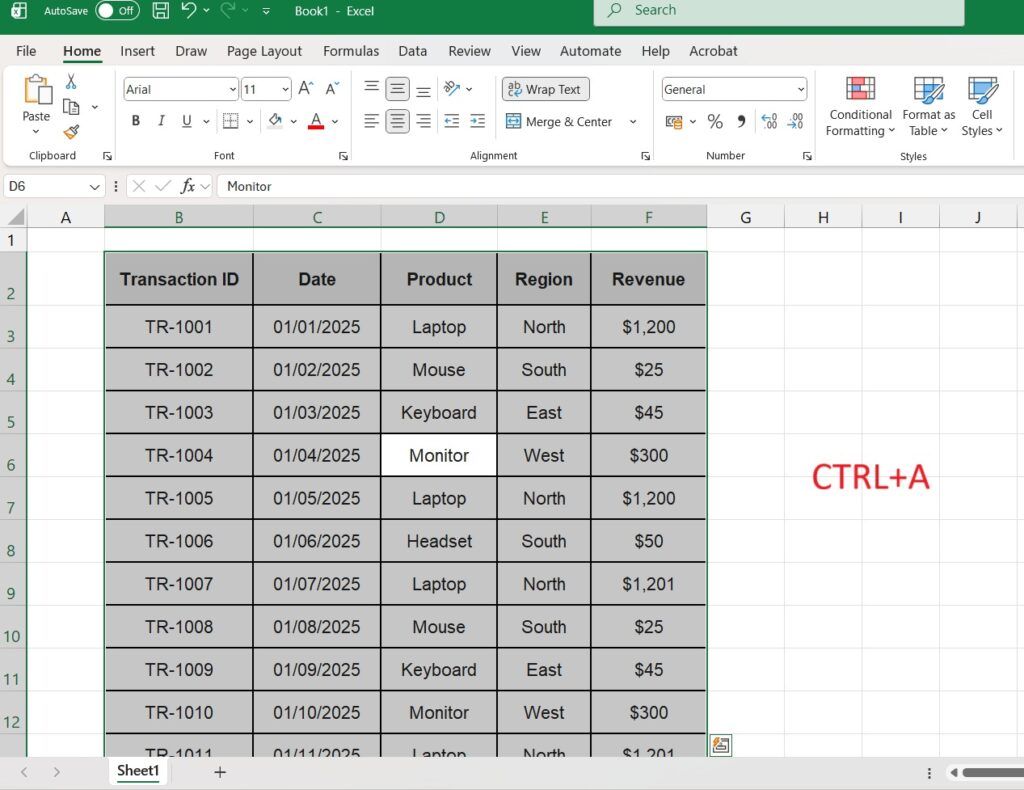
- Ctrl + A: Select the entire table or data region. (Press twice to select the whole sheet).
- Shift + Space: Select the entire Row.
- Ctrl + Space: Select the entire Column.
Part 4: Formatting in a Flash
Formatting makes data readable, but clicking the tiny buttons in the ribbon takes time. Use these instead.
Text Formatting
- Ctrl + B: Apply or remove Bold.
- Ctrl + I: Apply or remove Italic.
- Ctrl + U: Apply or remove <u>Underline</u>.
- Ctrl + 5: Apply or remove ~~Strikethrough~~.
Number Formatting (The “Ctrl + Shift” Series)
- Ctrl + Shift + 1 (!): Apply Number format (two decimal places).
- Ctrl + Shift + 4 ($): Apply Currency format ($).
- Ctrl + Shift + 5 (%): Apply Percentage format (no decimals).
- Ctrl + Shift + #: Apply Date format (Day-Month-Year).
- Ctrl + Shift + @: Apply Time format (AM/PM).
Borders
- Ctrl + Shift + &: Add a border outline around selection.
- Ctrl + Shift + _ (Underscore): Remove all borders.
Part 5: Editing and Formulas
These are the shortcuts that separate beginners from intermediate users.
- F2: Edit the active cell (puts the cursor inside the cell).
- F4: Repeat the last action.
- Example: If you color a cell yellow, go to another cell and press F4 to color it yellow instantly.
- In Formulas: Cycles between absolute and relative references ($A$1 -> A$1 -> $A1 -> A1).
- Alt + = (Equals): Insert AutoSum formula. This is the fastest way to sum a column.
- Ctrl + D: Fill Down (Copies the cell above into the current cell).
- Ctrl + R: Fill Right (Copies the cell to the left).
- Ctrl + ` (Backtick): Show/Hide all formulas in the sheet.
Part 6: The “Paste Special” Menu
Sometimes you want to paste only the values (removing the formulas) or only the formatting.
- Ctrl + Alt + V: Opens the Paste Special dialog box.
- Then press V for Values.
- Then press F for Formulas.
- Then press T for Formats.

Part 7: Managing Rows and Columns
Need to insert a new line or delete a bad column?
- Ctrl + + (Plus): Insert a new row or column (requires selection first).
- Ctrl + – (Minus): Delete the selected row or column.
- Ctrl + 0: Hide the selected column.
- Ctrl + 9: Hide the selected row.
Advanced Tip: The “ALT” Key Ribbon Shortcuts
If you forget a shortcut, Excel has a built-in map.
- Press the Alt key once and let go.
- You will see small black letters appear over the menu tabs (e.g., “H” for Home, “N” for Insert).
- Press the letter to open that tab.
- Press the next letter to choose the tool.
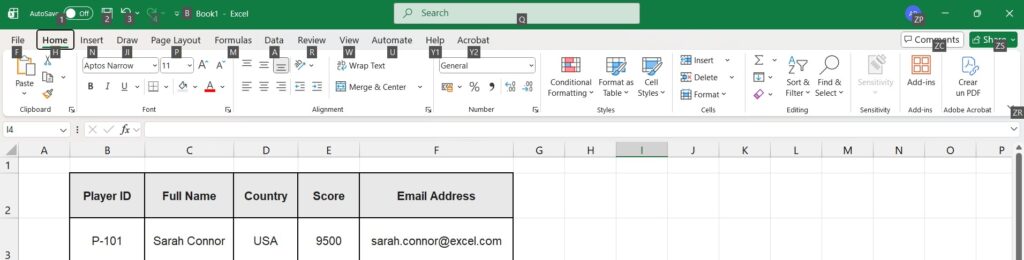
Example: To Remove Duplicates using only the keyboard:
Alt > A (Data tab) > M (Remove Duplicates).
Frequently Asked Questions (FAQ)
Do Mac shortcuts work differently?
Yes. On a Mac, you typically use the Command (⌘) key instead of Control (Ctrl). For example, Cmd + C to copy. Some function keys (F2, F4) may require pressing Fn as well.
How can I customize my own shortcuts?
Excel doesn’t let you easily change the default shortcuts, but you can add your favorite tools to the Quick Access Toolbar (top left). Once added, you can access them with Alt + 1, Alt + 2, etc.
Ready to put this into practice? Now that you are navigating like a pro, try managing large datasets. Practice your selection shortcuts on our guide for How to Create a Pivot Table in Excel.
Pingback: Arrow Keys Not Working in Excel? 5 Ways to Fix It Instantly