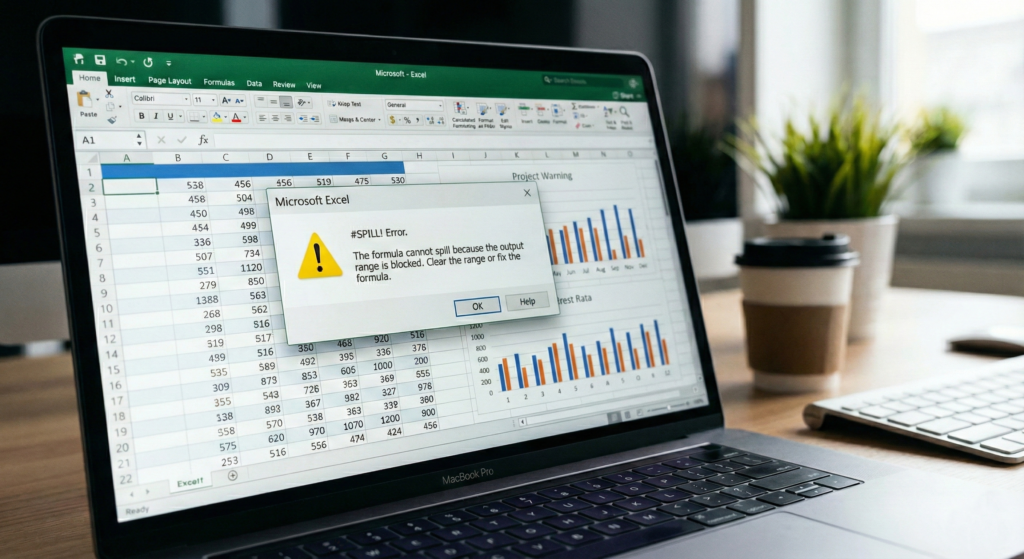
You just typed a formula and suddenly got a Spill error in Excel warning (shown as #SPILL!).
If you have recently switched to Office 365 or Excel 2021, this is likely the most common error you face. Unlike the classic #N/A (value not found) or #DIV/0! (math error), the Spill error in Excel is unique. It doesn’t mean your math is wrong; it means Excel is trying to help you, but something is in the way.
In this comprehensive guide, we will explain exactly why this happens, how the new “Dynamic Arrays” engine works, and provide 5 proven methods to fix the error instantly.
What is the #SPILL! Error?
To understand the error, you first need to understand how modern Excel works.
Old Excel vs. New Excel
In the past (Excel 2016 and older), one formula lived in one cell and returned one result. If you wanted to return a list of values, you had to use complex “Ctrl + Shift + Enter” array formulas.
Today, Excel uses Dynamic Arrays. Functions like UNIQUE, SORT, FILTER, or even a simple reference like =A2:A10 can return multiple results at once. These results automatically “spill” into the neighboring cells.
The Error: The #SPILL! error in Excel occurs when a formula tries to spill results into a range, but that range is not empty. Excel is polite: it refuses to overwrite your existing data without permission, so it blocks the formula and throws the error.
Cause 1: The Spill Range Isn’t Blank (The “Blockage”)
This is the cause of 90% of spill errors. You are trying to pour a gallon of water into a bucket that already has rocks in it. This blockage is the most frequent cause of the Spill error in Excel users encounter daily.
The “rocks” can be text, numbers, or even invisible characters.
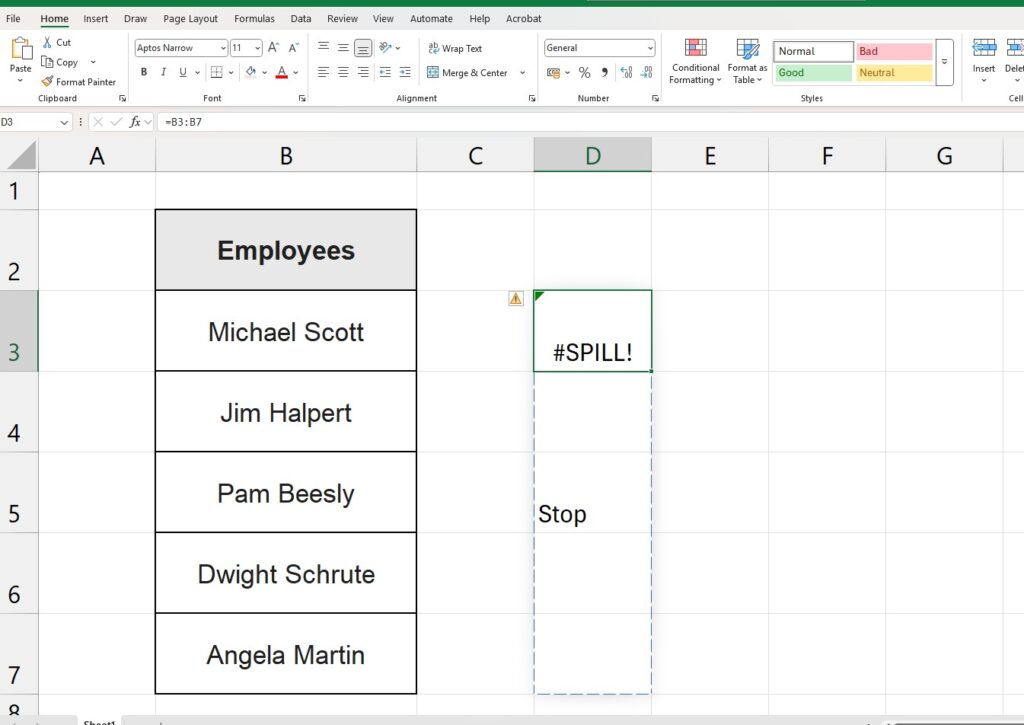
How to Fix It:
- Identify the Blockage: Click on the cell with the error. You will see a dashed blue border indicating where the formula wants to go.
- Look for Obstacles: Check that area. Is there a random number? A header you forgot to move?
- Clear the Path: Select the obstructing cells and press Delete.
- Instant Fix: As soon as the space is empty, Excel will automatically recalculate and fill the range.
Cause 2: The “Ghost” Character (Invisible Spaces)
Sometimes, the Spill error in Excel triggers even when the destination range looks completely empty.
This usually happens because of Spacebar Ghosts. If you accidentally clicked a cell, pressed the Spacebar, and hit Enter, that cell now contains a text string (a space). It looks empty to the human eye, but to Excel, it is full.
How to Fix It:
- Highlight the entire destination range (the area with the dashed lines).
- Check the “Count” status at the bottom right of your Excel window. If it says “Count: 1” or more, there is data there.
- Press the Delete key on your keyboard to wipe everything, visible or invisible.
Cause 3: Excel Tables (The Structural Limitation)
This is a major limitation that frustrates many advanced users. Dynamic Array formulas do not work inside official Excel Tables (created with Ctrl + T). Another common trigger for the Spill error in Excel is working inside structured tables
Excel Tables are designed to have a fixed number of rows for every column. A Dynamic Array (like FILTER) has a variable size—it might return 5 rows today and 50 tomorrow. The Table structure cannot handle this unpredictability.
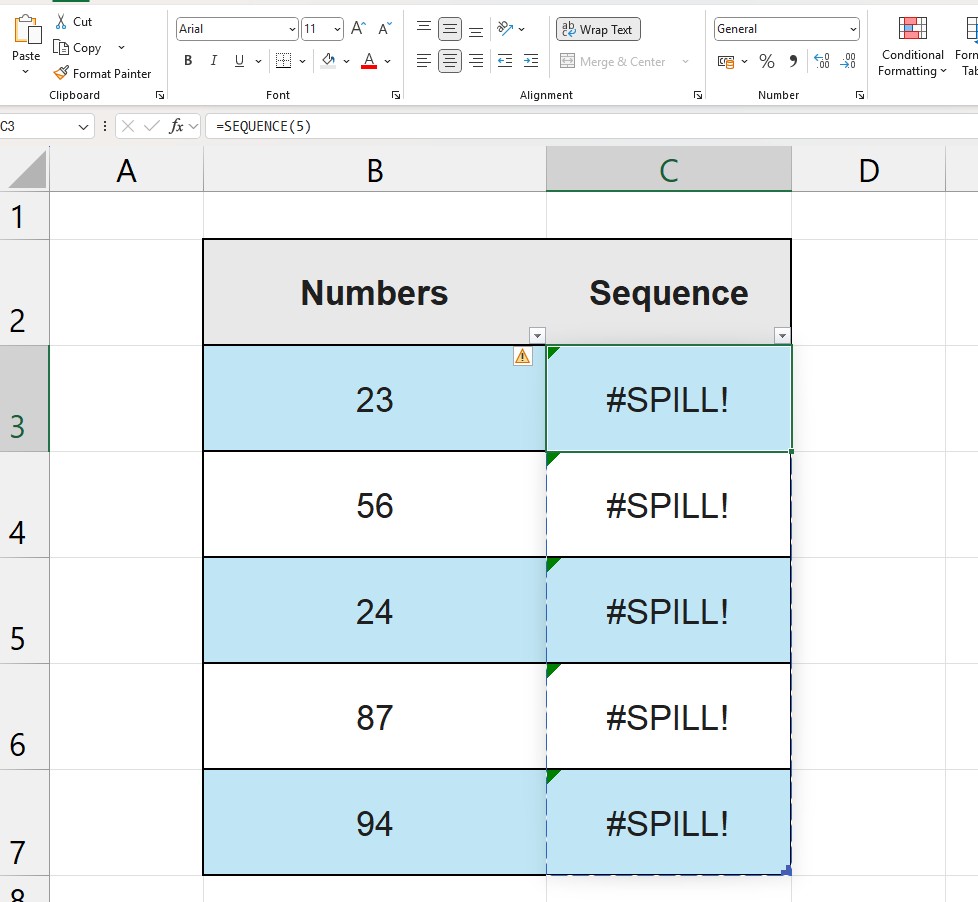
How to Fix It:
You have two options:
- Move the Formula: Place your dynamic formula in a cell outside of the table grid.
- Convert to Range: If you must keep the formula there, click inside the table, go to Table Design > Tools > Convert to Range. This removes the table features but keeps the formatting, allowing the formula to spill.
Cause 4: Merged Cells
Dynamic Arrays and Merged Cells are enemies. A formula cannot spill into a range if even one of the cells in that path is merged with another. Merged cells are actually frequent offenders; if your layout relies on them, you will constantly face the Spill error in Excel warning.
How to Fix It:
- Select the spill area.
- Go to the Home tab.
- Click the Merge & Center button (it will be highlighted) to turn it off.
- The formula should spill immediately.
Pro Tip: Avoid using Merged Cells generally. Use “Center Across Selection” in the Format Cells menu for a cleaner alternative.
Cause 5: The “Edge of the World” (Running Out of Rows)
Excel has a limit of 1,048,576 rows. If you write a formula that creates a sequence longer than the remaining space, it will error out.
Example: If you type =SEQUENCE(10) in row 1,048,570, there are only 6 rows left. The formula needs 10. It hits the ‘floor’ of the spreadsheet, creating a massive Spill error in Excel cannot resolve because there simply isn’t enough space left.
The Fix: Move your formula higher up the sheet or reference a smaller range.
Advanced Fix: The Intersection Operator (@)
What if you don’t want the formula to spill? What if you actually want the old Excel behavior (returning just one single value)?
You can force Excel to behave like the old versions using the Implicit Intersection Operator, which is the @ symbol.
Example:
- Formula:
=A:A- Result: Spills the entire column A.
- Formula:
=@A:A- Result: Returns only the value from column A that is in the same row as the formula. No spilling, no error.
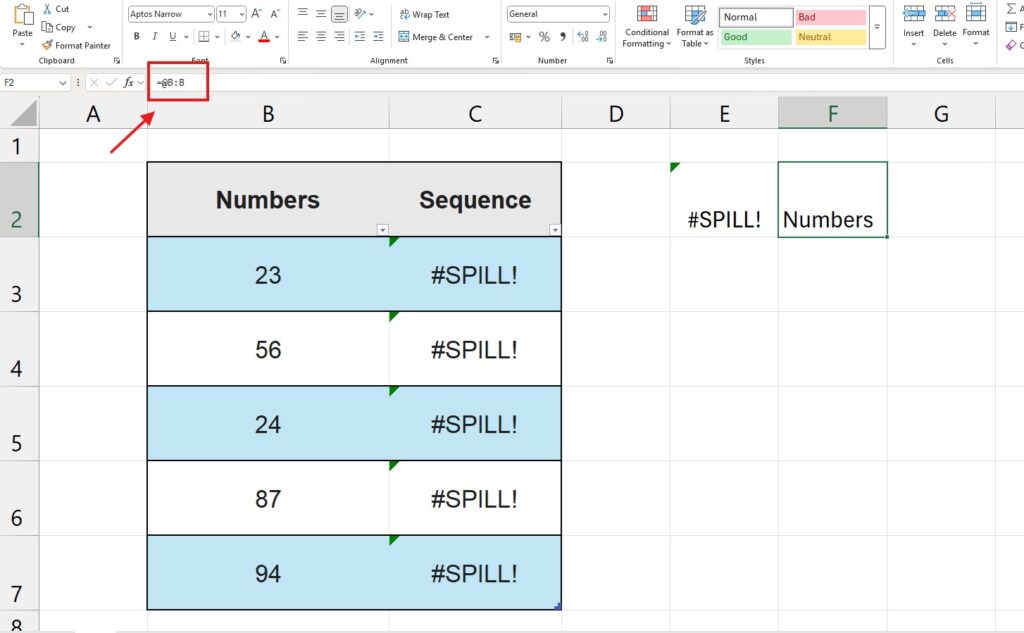
Use this only if you specifically want to prevent the spill behavior. By forcing the formula to return a single value, the @ operator effectively stops the formula from trying to expand, preventing the Spill error in Excel from ever appearing.
Summary Checklist: How to Fix #SPILL!
Use this quick checklist to resolve any Spill error in Excel throws at you:
- [ ] Clear the way: Delete any text or spaces in the destination cells.
- [ ] Unmerge: Check for merged cells in the path.
- [ ] Exit Table: Ensure you aren’t inside an Excel Table.
- [ ] Check Bounds: Ensure the result doesn’t run off the edge of the sheet.
Conclusion
The Spill error in Excel is actually a good thing. It protects your data from being accidentally overwritten. Once you understand that it is simply a “traffic jam” warning, fixing it becomes second nature.
Mastering this error is the key to unlocking the power of modern functions. Now you can confidently use tools like the UNIQUE Function to clean data or How to Randomize a List without fear of breaking your spreadsheet.
Pingback: How to Sort Columns in Excel: The Ultimate Guide (2025)