
Making smart decisions based on data is the core of any analyst’s job.
You often need to ask questions like: “If sales are over $10,000, give a bonus. If not, give nothing.” or “If the calculation returns an error, show a blank cell instead of #DIV/0!.”
You don’t need to check these manually row by row. You need the IF Function in Excel.
The IF function is widely considered the most essential formula in Excel. It allows you to automate decision-making. In this comprehensive guide, we will take you from the basic logic to advanced techniques like Nested IFs, combining logical operators like AND/OR, and handling errors with IFERROR.
What is the IF Function in Excel?
In plain English, the IF function tells Excel: “Check this condition. If it is TRUE, do this. If it is FALSE, do that.”
=IF(logical_test, value_if_true, [value_if_false])- logical_test: What are you checking? (e.g.,
Sales > 10000). - value_if_true: What to show if the test passes? (e.g., “Yes”, 500, or a formula).
- value_if_false: What to show if the test fails? (e.g., “No”, 0, or blank
"").
Level 1: The Basic IF Statement (Pass or Fail)
Let’s look at a simple sales report. We want to check if our employees hit their target.
- Click on the cell where you want the result.
- Type this formula:
=IF(D2>=E2, "Met Target", "Missed") - Press Enter.

What happened? Excel checked if the Sales value (C2) was greater than or equal to the Target (D2). If yes, it displayed “Met Target”. If no, it displayed “Missed”.
Level 2: IF with Calculations (Calculating Bonuses)
You are not limited to text. You can make Excel perform math based on the result.
Let’s calculate a 10% Bonus only for those who met the target.
Formula: =IF(D3>=E3, D3*10%, 0)
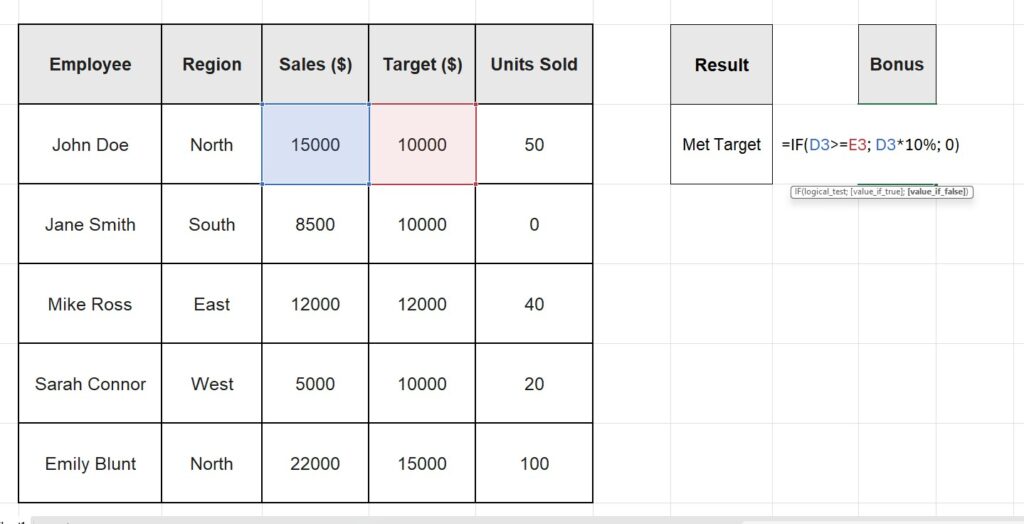
Translation: “If Sales >= Target, multiply the Sales amount by 0.10. Otherwise, return 0.”
This is much faster than filtering the list and calculating manually.
Level 3: Nested IFs (Checking Multiple Conditions)
What if you have more than two outcomes? For example, a grading system:
- Sales < $5,000 = “Low”
- Sales < $15,000 = “Medium”
- Sales > $15,000 = “High”
You need a Nested IF (placing an IF inside another IF).
Formula: =IF(C2<5000, "Low", IF(C2<15000, "Medium", "High"))
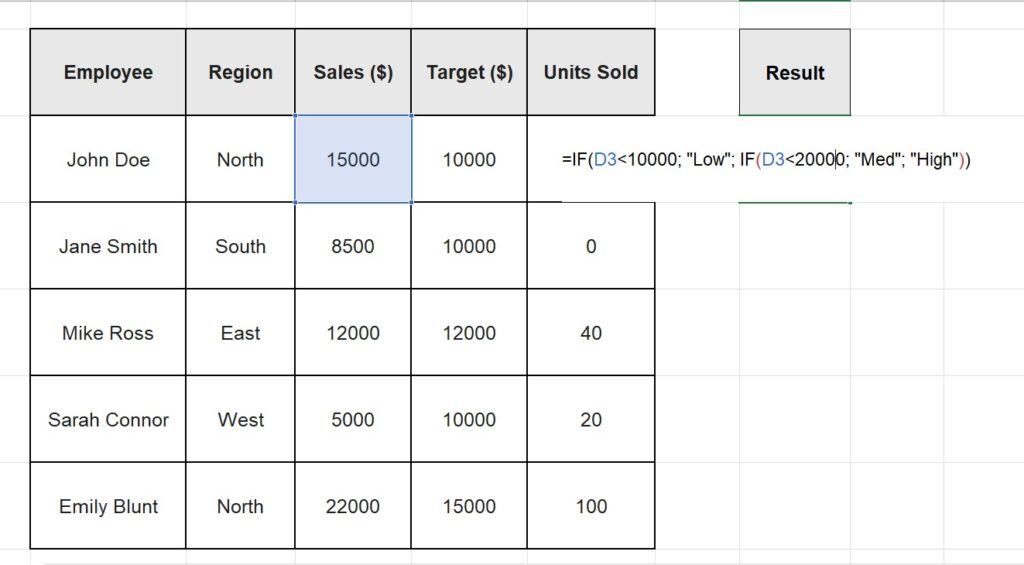
Excel checks the first condition. If false, it moves to the second IF.
Pro Tip: If you have Office 365 or Excel 2019+, use the IFS function instead. It is cleaner and easier to read: =IFS(C2<5000, "Low", C2<15000, "Medium", TRUE, "High")
Level 4: Using IF with AND / OR
Sometimes a decision depends on two factors.
The AND Function
Returns TRUE only if ALL conditions are met.
- Scenario: Give a bonus ONLY if Sales > $10,000 AND the Region is “North”.
- Formula:
=IF(AND(D3>10000, C3="North"), "Bonus", "No")

The OR Function
Returns TRUE if AT LEAST ONE condition is met.
- Scenario: Give a bonus if Sales > $10,000 OR the Region is “North”.
- Formula:
=IF(OR(C2>10000, B2="North"), "Bonus", "No Bonus")
Level 5: IFERROR Function (The “Clean Up” Hero)
This function is trending for a reason. It makes your spreadsheets look professional by hiding ugly error codes like #DIV/0!, #N/A, or #VALUE!.
The Problem: Imagine you are calculating “Average Sale” by dividing Total Sales / Units Sold. If “Units Sold” is 0 or blank, Excel will crash with a #DIV/0! error.
The Solution (IFERROR): Instead of leaving the error, wrap your formula inside IFERROR.
Syntax:
=IFERROR(value, value_if_error)Real Example: =IFERROR(A2/B2, 0)
Translation: “Try to divide A2 by B2. If it works, show the result. If it causes an error, show 0 instead.”
You can also replace errors with text, like “Data Missing”: =IFERROR(VLOOKUP(A2, D:E, 2, FALSE), "Not Found")

Frequently Asked Questions (FAQ)
Can I change cell colors with the IF function in Excel? No, formulas only return values or text. If you want to change colors (e.g., turn “Missed” cells red), you must use Conditional Formatting.
How many Nested IFs can I use? Excel allows up to 64 nested IFs, but we strongly advise against it. If you have more than 3 or 4 conditions, your formula becomes impossible to read. Consider using VLOOKUP or a reference table instead.
What is the difference between IF and IFS? IF checks one condition (True/False). IFS allows you to check multiple conditions in a single step without nesting. However, IFS is not available in older versions of Excel (pre-2019).
Visualize your results Now that you have categorized your data with “High/Medium/Low” or “Pass/Fail”, make it visual. Learn how to highlight these results automatically in our guide on How to Use Conditional Formatting in Excel.