
Are you dealing with a messy spreadsheet full of repeated names, email addresses, or transaction IDs? Cleaning data manually can take hours. Fortunately, Excel has a built-in feature that can do it in seconds.
In this guide, you will learn the fastest and safest way to remove duplicate values in Excel to keep your data clean and professional.
Method 1: The “Remove Duplicates” Button (Easiest)
This is the standard method used by 99% of professionals. It permanently deletes the duplicate rows.
Step 1: Select Your Data Click and drag to highlight the range of cells you want to check. If you have a large table, just click inside the table and press Ctrl + A to select everything.
Step 2: Go to the Data Tab Look at the top ribbon menu. Click on Data.
Step 3: Click “Remove Duplicates” In the “Data Tools” section, look for the icon with two blue bars and a small red X. Click Remove Duplicates.

Step 4: Confirm Your Columns A pop-up window will appear.
- My data has headers: Check this box if your first row contains titles (like “Name” or “Date”).
- Columns: Select the columns where you want Excel to look for duplicates.
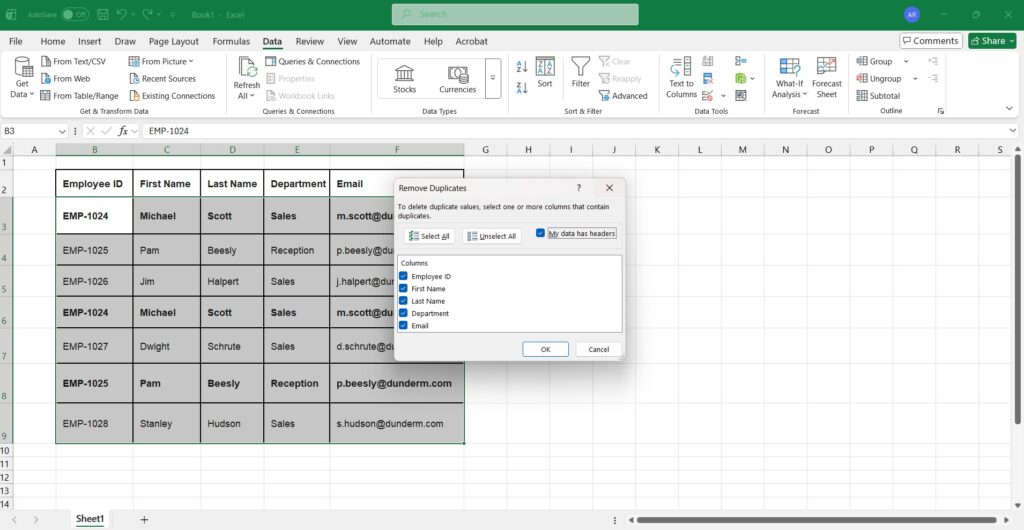
Step 5: Click OK Excel will tell you exactly how many duplicates were found and removed, and how many unique values remain.

Warning: This action cannot be undone easily if you save the file. We recommend pressing Ctrl + C followed by Ctrl + V to copy your original data to a new sheet before doing this, just in case.
Method 2: The UNIQUE Function (Dynamic)
If you have Excel 365 or Excel 2021, you can use a formula to create a new list without duplicates, leaving your original data untouched.
The Syntax:
=UNIQUE(range)How to use it:
- Click on an empty cell where you want the clean list to appear.
- Type
=UNIQUE(. - Select your dirty list (e.g., A2:A100).
- Press Enter.
Frequently Asked Questions (FAQ)
Does removing duplicates delete the whole row? Yes. If you select the whole table, Excel will delete the entire row associated with the duplicate value found in the selected column.
Is distinct the same as unique in Excel? Not exactly. “Distinct” usually means one instance of every value (A, B, C). “Unique” sometimes refers to values that appear only once and never repeat. The methods above give you a list of distinct values (one of each).
What’s Next? Now that your dataset is clean and free of duplicates, you are ready to start analyzing your numbers. Want to know how spread out your data is?
👉 Check out our guide on How to Calculate Standard Deviation in Excel.
Pingback: How to Split Text to Columns in Excel (Separate Names, Dates & More) – ExcelifyHub
Pingback: How to Create and Print Address Labels from Excel (Step-by-Step Mail Merge) – ExcelifyHub
Pingback: How to Recover an Unsaved Excel File (4 Proven Methods 2025) – ExcelifyHub
Pingback: How to Find and Fix Circular References in Excel 2025
Pingback: How to Use Copilot in Excel: The Ultimate AI Guide (2025)
Pingback: How to Randomize a List in Excel:Shuffle Data Instantly 2025
Pingback: How to Add Bullet Points in Excel: 6 Ways to Create Lists