
It is the nightmare of every office worker. You have been working on a spreadsheet for hours. Suddenly, Excel crashes, your computer freezes, or you accidentally click “Don’t Save”.
Panic sets in. Did you just lose everything?
Don’t panic yet. Excel has powerful built-in safety nets that are running in the background. In most cases, you can bring your work back in minutes.
In this guide, we will show you the 4 fastest ways to recover an unsaved Excel file.
Method 1: The “Recover Unsaved Workbooks” Tool (Best for “Don’t Save” Accidents)
If you accidentally clicked “Don’t Save” when closing a file, this is your best shot.
- Open a blank Excel workbook.
- Go to the File tab > Open.
- Click on Recent.
- Scroll down to the very bottom of the list.
- Click the button that says Recover Unsaved Workbooks.
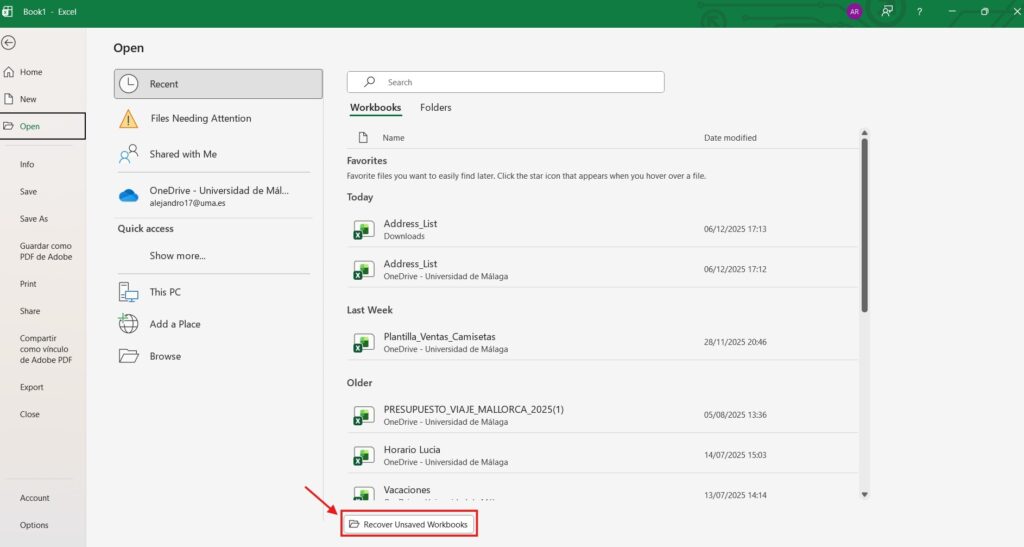
A folder will open showing temporary files. If you see your file there, open it and immediately click “Save As” to secure it.
Method 2: AutoRecover (For Crashes)
If Excel crashed or your power went out, the AutoRecover feature usually kicks in automatically the next time you open the app.
- Open Excel.
- Look for a Document Recovery pane on the left side of the screen.
- Click on the file name with the timestamp closest to the crash.
Pro Tip: Make sure this feature is turned on for the future!
- Go to File > Options > Save.
- Ensure “Save AutoRecover information every X minutes” is checked (we recommend setting it to 5 minutes).

Method 3: Version History (For OneDrive/SharePoint Users)
If you save your files to OneDrive or SharePoint, you are lucky. Microsoft saves “versions” every time you make a change.
- Open your Excel file (even if it looks old or empty).
- Click on the file name at the very top of the window title bar.
- Select Version History.
- A sidebar will appear on the right showing previous versions. Click through them to find the one with your lost data and click Restore.
Method 4: Check the Temp Files (Last Resort)
If nothing else works, you can try hunting for the temporary file in Windows.
- Open File Explorer.
- Go to this path:
C:\Users\[YourName]\AppData\Local\Microsoft\Office\UnsavedFiles - Look for files ending in
.tmpor starting with~. - Try changing the extension from
.tmpto.xlsxand opening it.
FAQ: How to Prevent Data Loss
Why didn’t AutoSave work? AutoSave (the switch in the top left corner) only works if your file is saved on OneDrive or SharePoint. If you save locally to your PC, AutoSave is off.
How often does Excel save backups? By default, every 10 minutes. We highly recommend changing this to every 1 minute in File > Options > Save for maximum safety.
Protect your work. Now that your file is safe, ensure your data is clean and duplicate-free. Check out our guide on How to Remove Duplicates in Excel.