
Excel is famous for keeping things organized, sorted, and structured. But sometimes, you need the exact opposite: chaos.
Whether you are picking a winner for a raffle, assigning random shifts to employees, or selecting a random sample of data for analysis, learning how to randomize a list in Excel is a surprisingly useful skill.
Unlike “A to Z” sorting, there is no single “Shuffle” button in the standard ribbon. However, with a simple trick or a modern formula, you can mix up your data in seconds. Here is the ultimate guide to shuffling in Excel.
Method 1: The Helper Column (Best for Static Lists)
This is the classic, bulletproof method that works in every version of Excel, from 2007 to 2025. It uses a “Helper Column” to assign a random number to each row, and then sorts by that number.
Step-by-Step:
- Add a Column: Insert a new blank column next to your list (e.g., Column E). Name it “Random”.
- The Formula: In the first cell (B2), type:
=RAND()and press Enter. You will see a decimal number between 0 and 1. - Fill Down: Double-click the fill handle (the small square in the corner of the cell) to copy the formula down to the bottom of your list.
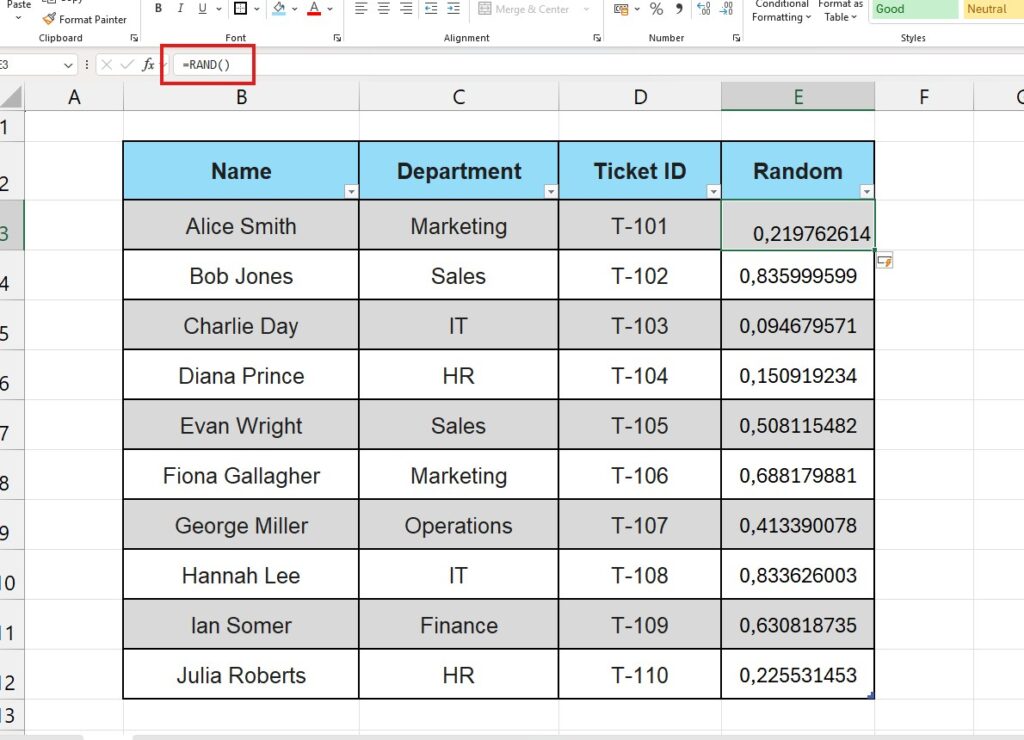
- Sort:
- Click on any cell in your new “Random” column.
- Go to the Data tab > Sort & Filter group.
- Click the AZ (Sort Smallest to Largest) icon.
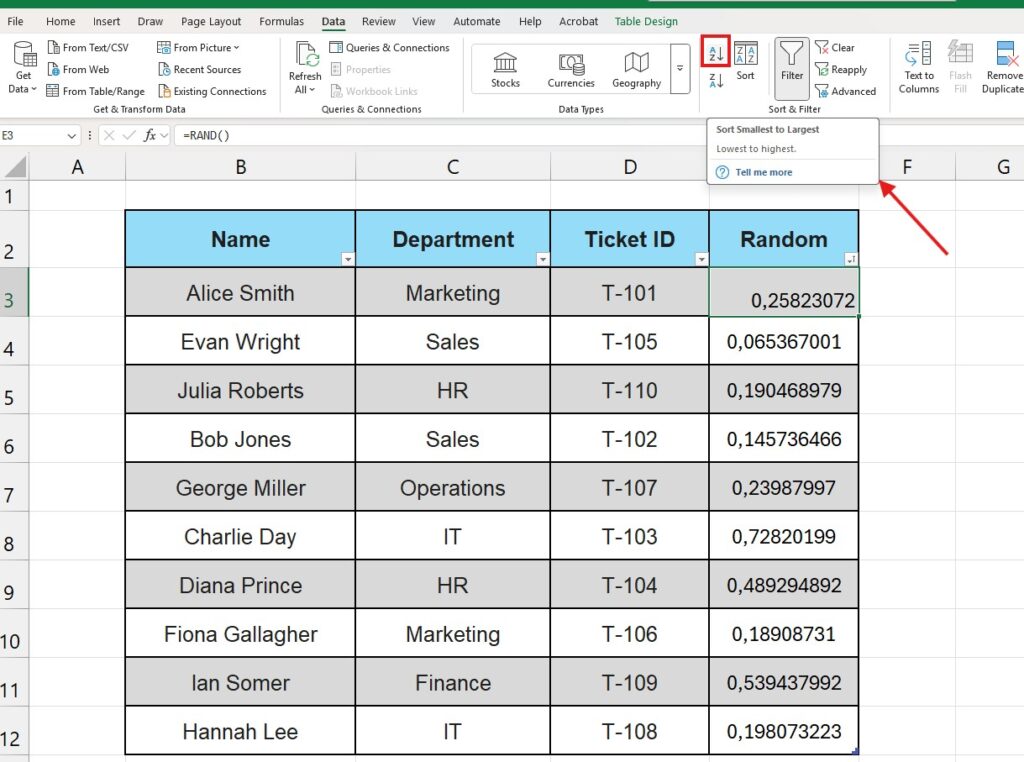
Boom. Your original list is now completely shuffled based on the random numbers. You can now delete the “Random” column if you don’t need it anymore.
Pro Tip: Want to re-shuffle? Just press F9 (this recalculates the sheet and generates new random numbers) and click the Sort button again.
Method 2: The “Dynamic Array” Way (Best for Excel 365)
If you have the latest version of Excel, you don’t need helper columns or manual sorting. You can use the powerful SORTBY and RANDARRAY functions to create a live, auto-shuffling list.
The Formula:
Let’s say your original list is in range B3:B12. In a blank cell (like G3), type this:
=SORTBY(A2:A10, RANDARRAY(COUNTA(B3:B12)))
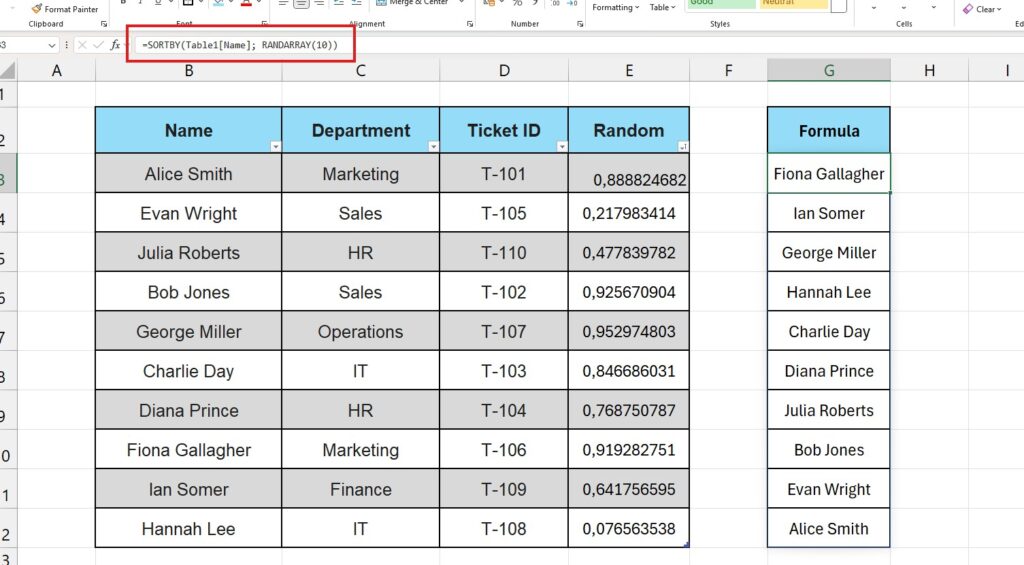
How it works:
- RANDARRAY: Generates a list of random numbers exactly as long as your data.
- SORTBY: Takes your original list and sorts it based on those random numbers instantly.
- Dynamic: If you add a name to the original list, the shuffled list updates automatically.
Note: This creates a “Spill” range. Make sure the cells below are empty, or you will get a Spill Error.
Method 3: How to Pick a Random Winner (Single Value)
Sometimes you don’t want to shuffle the whole list; you just want to know how to randomize a list in Excel to pick one single winner.
Instead of sorting, use INDEX and RANDBETWEEN.
The Formula: =INDEX(A2:A10, RANDBETWEEN(1, ROWS(A2:A10)))
This tells Excel: “Look at the list in column A, and pick the row number randomly between 1 and the total number of rows.” Every time you press F9, a new winner is chosen.
Why Do My Numbers Keep Changing? (The Volatility Trap)
A common frustration is that every time you type something elsewhere in the sheet, your random list re-shuffles itself.
This happens because RAND() and RANDARRAY() are Volatile Functions. They recalculate with every single action you take in Excel.
The Fix: Once you have shuffled your list (using Method 1), you need to “freeze” the order:
- Select your shuffled list.
- Press
Ctrl + C(Copy). - Right-click and choose Paste Values (the icon with “123”).
Now your order is locked and won’t change unless you want it to.
When to Use Randomization?
- Auditing: Picking 10 random invoices to check for errors.
- Giveaways: Fairly selecting a winner from an email list.
- Team Building: Assigning people to random groups or tables.
- Data Science: Splitting data into “Training” and “Testing” sets.
Important: Before randomizing, ensure your data is clean. If you have the same person listed twice, they have double the chance of winning. Check out our guide on How to Remove Duplicates first to ensure a fair shuffle.
Conclusion
Learning how to randomize a list in Excel adds a powerful tool to your kit. Whether you prefer the visual control of the “Helper Column” method or the tech-savvy “Dynamic Array” formula, you can now bring unbiased randomness to your spreadsheets in seconds.
Next time you need to pick a volunteer, don’t draw names from a hat—let Excel do the work!
Pingback: #SPILL! Error in Excel: The Complete Guide (2025)