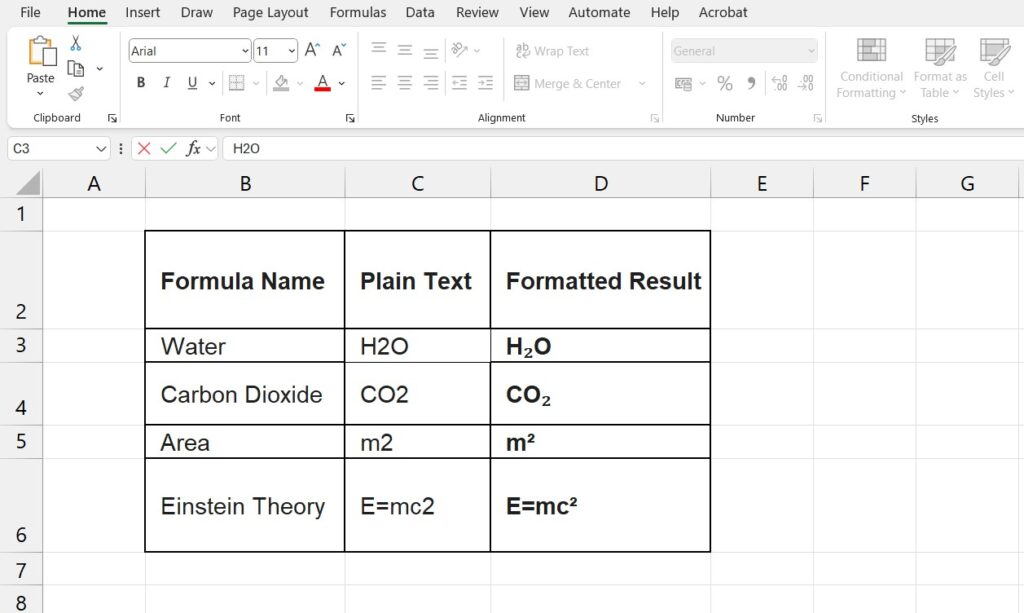
Are you trying to write chemical formulas like H₂O or mathematical exponents like X² in Excel?
You probably noticed that the buttons are missing from the top ribbon. Unlike Microsoft Word, Excel hides these formatting options deep in the menus.
But don’t worry. Learning how to apply Subscript and Superscript in Excel is actually very fast once you know the secret shortcuts.
In this ultimate guide, we will show you 4 methods to format your text, including keyboard shortcuts for Windows and Mac, and how to use the Equation Editor for professional math formulas.
Method 1: The “Format Cells” Shortcut (Fastest)
This is the standard method that works in every version of Excel. It allows you to format specific characters within a cell without affecting the rest of the text.
Step 1: Edit the Cell Double-click the cell containing your text (or press F2).
Step 2: Select the Character Highlight only the number or letter you want to change (e.g., the “2” in H2O).
Step 3: Open the Format Menu Press Ctrl + 1 on your keyboard.
- Note: Use the “1” on the top row of keys, not the number pad.
Step 4: Check the Box A window will pop up. Under the “Effects” section, check Subscript and Superscript in Excel.
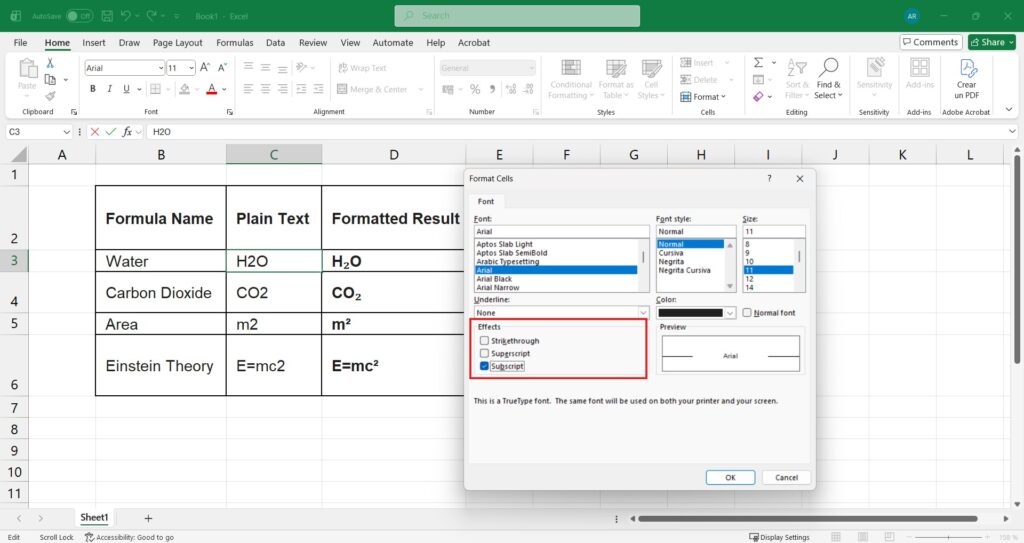
Step 5: Press Enter Click OK or hit Enter. Your text is now formatted perfectly.
Method 2: Adding Buttons to the Quick Access Toolbar (Pro Tip)
If you use these symbols often, you don’t want to open a menu every time. You can add a permanent button to the top of your Excel window.
- Click the small down arrow at the very top left of the Excel window (Quick Access Toolbar).
- Select “More Commands…”
- In the dropdown, switch from “Popular Commands” to “All Commands”.
- Scroll down until you find Subscript and Superscript in Excel.
- Click Add >> and then OK.
Now you have two clickable icons always visible at the top of your screen. Just highlight your text and click the icon!
Method 3: Keyboard Shortcuts (Windows vs. Mac)
Speed up your workflow with these hotkeys.
Windows Shortcuts
Surprisingly, Excel for Windows does not have a direct Ctrl + Shift + + shortcut like Word. You must use the menu sequence:
- Strikethrough:
Ctrl + 5 - Subscript/Superscript:
Alt + H + F + N(This opens the Font dialog). Then pressAlt + Bfor Subscript orAlt + Efor Superscript.
Mac Shortcuts (Easier!)
If you are using macOS, you are in luck. The shortcuts are direct:
- Superscript:
Command (⌘) + Shift + Plus (+) - Subscript:
Command (⌘) + Plus (+)
Method 4: The Equation Editor (For Complex Math)
If you are trying to write complex equations (like fractions with exponents), standard cell formatting isn’t enough. You need the Equation Editor.
- Go to the Insert tab.
- Click on Equation (usually on the far right, symbol pi).
- A text box will appear. Use the “Script” menu in the ribbon to insert visual templates for Super/Subscripts.
Note: This creates a floating object/image, not text inside a cell. It is best for printing or presentations.
Frequently Asked Questions (FAQ)
Why doesn’t the Ctrl + Shift + + shortcut work? That shortcut works in Microsoft Word, but unfortunately, Excel does not support it by default. You must use the Ctrl + 1 method described above.
Can I format numbers as subscript? Yes, but be careful. If the cell is formatted as a “Number”, Excel might revert it to plain text. It is best to format the cell as “Text” before adding subscripts to avoid errors.
Why is the Subscript button grayed out? This happens if you have not selected specific text inside the cell. You must double-click the cell and highlight the character first. You cannot apply subscript to an entire cell at once easily.
Analyze your scientific data Now that your formulas look correct ando you now how to add Subscript and Superscript in Excel, make sure your calculations are accurate. Learn how to handle variability with our guide on How to Calculate Standard Deviation in Excel.