
Counting numbers in Excel is easy. You just look at the status bar or use the COUNT function.
But what if you need to count text?
If you try to use the standard =COUNT() formula on a list of names or products, Excel will return 0. Why? Because COUNT only counts numbers.
To count text, you need to use different functions. In this guide, we will show you the 3 best ways to count cells containing text, whether you want to count everything or specific words.
Method 1: Count All Non-Empty Cells (COUNTA)
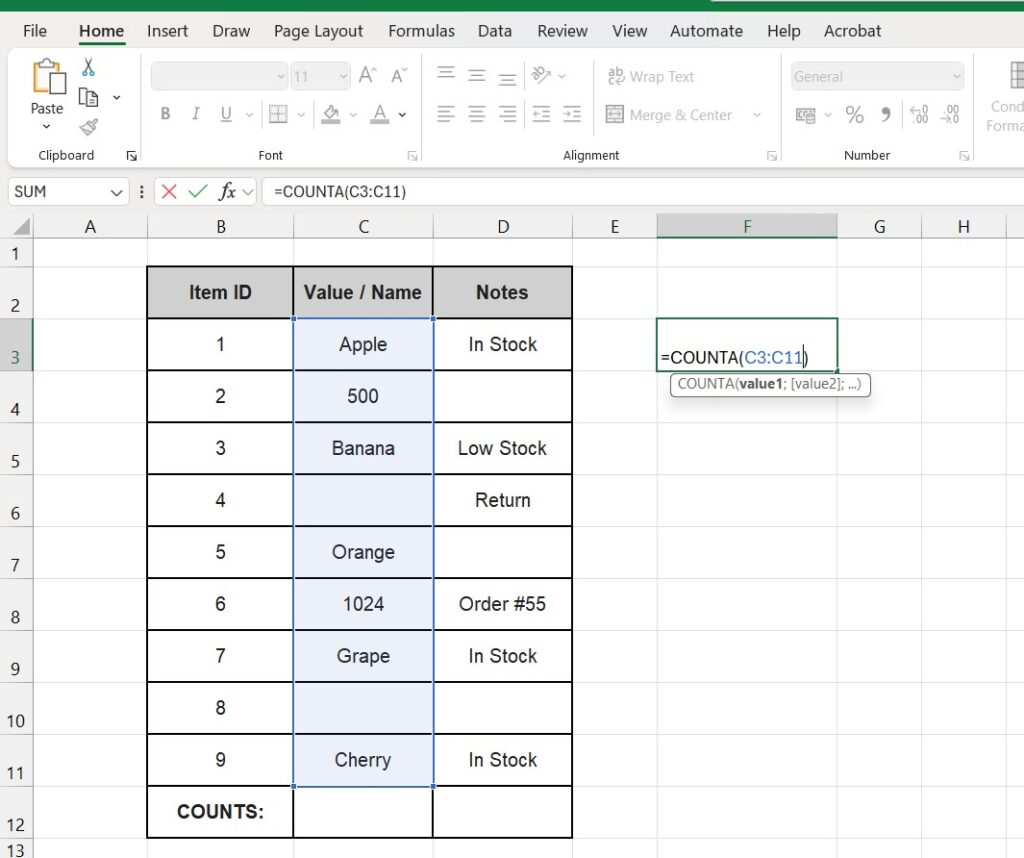
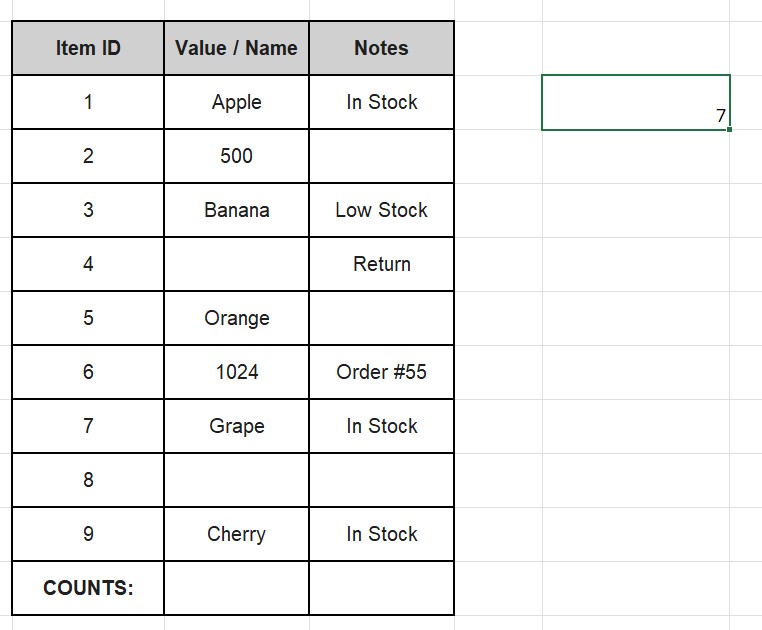
The COUNTA function stands for “Count All”. It counts everything that is not blank. It counts text, numbers, errors, and dates.
Formula:
=COUNTA(range)When to use it:
Use this when you have a list of names (e.g., Column C) and you just want to know “How many entries are there total?”, regardless of what they are.
Method 2: Count ONLY Text Cells (COUNTIF Wildcard)
What if you have a column mixed with numbers and text, and you only want to count the text values?
COUNTA won’t work because it counts the numbers too. You need COUNTIF with a “Wildcard”.
Formula:
=COUNTIF(range, "*")How it works:
- The asterisk
*is a wildcard that means “any sequence of text characters”. - Excel will count “Apple” and “Banana”, but it will ignore numbers like “500” or empty cells.


Method 3: Count Specific Text (Exact Match)
Sometimes you don’t want to count any text, but specific words (e.g., how many times “Apple” appears).
Formula:
=COUNTIF(range, "Apple")

Or count text containing a word:
If you want to count cells that contain “Apple” (like “Green Apple” or “Apple Pie”), add asterisks around the word:
=COUNTIF(range, "*Apple*")Summary Table: Which Formula to Use?
| Goal | Formula |
| Count Numbers only | =COUNT(range) |
| Count Everything (Text + Numbers) | =COUNTA(range) |
| Count Text Only (Ignore Numbers) | =COUNTIF(range, "*") |
| Count Specific Word | =COUNTIF(range, "Word") |
Frequently Asked Questions (FAQ)
Why is my COUNTA result wrong?
COUNTA often counts cells that look empty but aren’t. If a cell contains a space ” ” or an empty string “” from a formula, Excel considers it “not empty”. To fix this, try selecting the blanks and pressing Delete.
Is there a COUNTIFS for multiple text criteria?
Yes. If you want to count rows where Column A is “Apple” AND Column B is “In Stock”, use:
=COUNTIFS(A:A, "Apple", B:B, "In Stock")
Organizing your text data? Counting is easier when your data is clean. If you have messy names, learn how to split them properly with our guide on How to Split Text to Columns in Excel.