
In this ultimate guide, we will cover 5 distinct methods to change text case in Excel. From simple formulas for beginners to Power Query and VBA for power users, we have a solution for every scenario.
It is a common frustration. You export a report from your company’s database or CRM, and the names are a disaster. Some are in ALL CAPS (“JOHN SMITH”), others are lowercase (“john smith”), and some are a weird mix (“jOhN sMiTh”).
Unlike Microsoft Word, Excel does not have a simple Shift + F3 keyboard shortcut or a visible “Change Case” button on the ribbon to fix this instantly.
If you are fixing a list of 5,000 customers, retyping them manually is impossible. You need an automated solution.
The Goal: Standardizing Your Data
Before we start, let’s define what we are trying to achieve. We want to convert messy text into one of these three standard formats:
- UPPERCASE: Converts all letters to capitals (e.g.,
EXCELIFY HUB). Great for headers or codes. - lowercase: Converts all letters to small letters (e.g.,
excelify hub). Often used for email addresses. - Proper Case: Capitalizes the first letter of each word (e.g.,
Excelify Hub). This is the standard for Names, Cities, and Titles.
Method 1: The Classic Text Formulas (Best for Stability)
Excel provides three dedicated functions to handle text case. These are dynamic, meaning if you change the original name, the corrected version updates automatically.
1. The UPPER Function
Use this to scream your data in all caps.
- Syntax:
=UPPER(text) - Example:
=UPPER(A2)turns “John” into “JOHN”.
2. The LOWER Function
Use this to normalize email addresses or IDs.
- Syntax:
=LOWER(text) - Example:
=LOWER(A2)turns “JOHN” into “john”.
3. The PROPER Function (Title Case)
This is the most popular function for cleaning name lists.
- Syntax:
=PROPER(text) - Example:
=PROPER(A2)turns “JOHN SMITH” into “John Smith”.
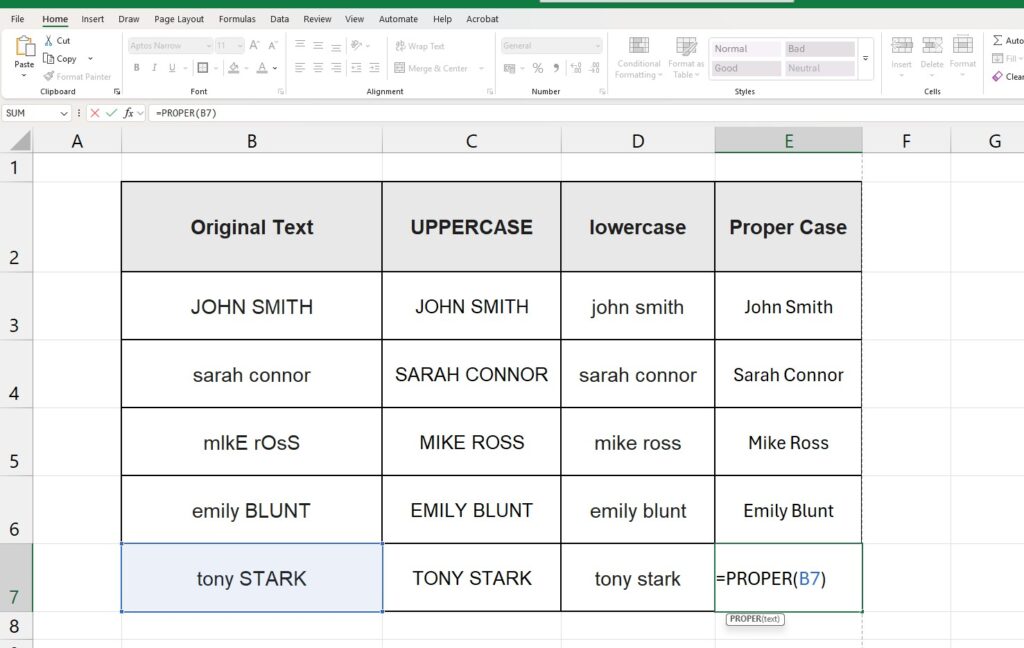
Pro Tip: Combining with TRIM (Clean Spaces)
Usually, bad capitalization comes with unwanted spaces (e.g., ” John “). To fix both problems at once, nest the formulas:
- Formula:
=PROPER(TRIM(A2)) - Result: Converts ” john smith ” to “John Smith” perfectly clean.
Method 2: Flash Fill (The “No-Formula” Magic Trick)
If you are using Excel 2013 or newer, you don’t actually need formulas. You can use Flash Fill, which uses Artificial Intelligence to guess what you want to do.
How to do it:
- Imagine your messy data is in Column A.
- In the adjacent cell (B2), type the result you want manually. (e.g., If A2 is “SARAH”, type “Sarah” in B2).
- Click on the cell below it (B3).
- Press the shortcut Ctrl + E.
- Excel will instantly learn the pattern and fill the rest of the column for you.
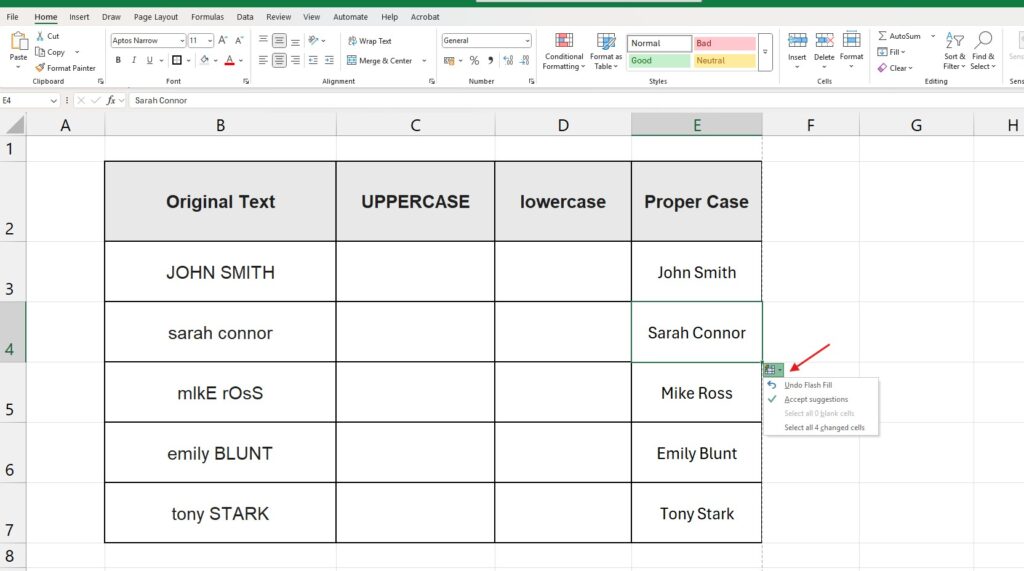
When to use it: When you need a quick, static fix and don’t want to deal with formulas slowing down your sheet.
Method 3: The Microsoft Word Hack (The “Shift + F3” Trick)
If you have a small dataset (e.g., 50 rows) and you hate Excel formulas, you can use Microsoft Word’s powerful text engine to help you.
- Copy your column of messy text from Excel.
- Paste it into a blank Microsoft Word document.
- Highlight all the text in Word (
Ctrl + A). - Press Shift + F3 repeatedly.
- Press 1: All Uppercase.
- Press 2: All Lowercase.
- Press 3: Sentence Case.
- Once it looks right, Copy it from Word and Paste it back into Excel.
It sounds “low-tech”, but it is surprisingly fast for one-off tasks!
Method 4: Power Query (For Massive Datasets)
If you are importing millions of rows or connecting to a database, formulas will make your workbook slow and heavy. Power Query is the professional solution.
- Select your data range and go to the Data tab.
- Click From Table/Range. The Power Query Editor window will open.
- Right-click on the column header you want to fix.
- Hover over Transform.
- Select your desired option: lowercase, UPPERCASE, or Capitalize Each Word.
- Click Close & Load (top left).

Excel will create a new, clean table on a new sheet. The best part? If you add more data later, you just click “Refresh”, and Power Query cleans it automatically without you doing anything.
Method 5: Making it Permanent (Paste Values)
If you used Method 1 (Formulas), you have a problem: your new clean text depends on the old messy text. If you delete the messy column, the clean column breaks (shows #REF!).
You must convert formulas to values:
- Select your new “clean” column.
- Press Ctrl + C (Copy).
- Right-Click on the same spot.
- Under “Paste Options”, click the icon with the numbers “123” (Values).
Now the cells contain actual text, not formulas. You can safely delete the old messy column.
Frequently Asked Questions (FAQ)
Why doesn’t Proper Case handle “Mc” or “Mac” names correctly? The PROPER function is simple; it capitalizes the first letter after a space. It will convert “MCDONALD” to “Mcdonald”, not “McDonald”. For these specific exceptions, you would need a complex VBA script or manual correction.
Can I force user input to be Uppercase automatically? Yes, but only with Data Validation or VBA. You can use Data Validation with the formula =EXACT(A1, UPPER(A1)) to prevent users from typing lowercase letters.
Is there a function for Sentence case? Surprisingly, no. Excel has LOWER, UPPER, and PROPER, but no formula for “Sentence case” (capitalizing only the first letter of the sentence). You would need to use a complex formula like: =UPPER(LEFT(A1,1)) & LOWER(RIGHT(A1,LEN(A1)-1))
Keep your data organized Formatting text is just the first step. If your list contains full names, you might want to split them into First and Last Name columns. Check out our guide on How to Split Text to Columns in Excel.