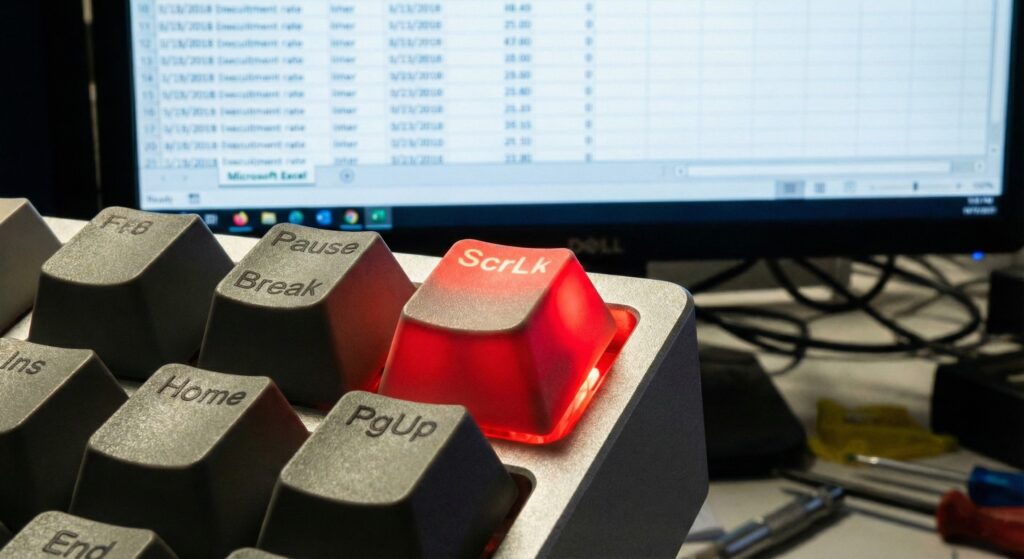
You open your spreadsheet, press the down arrow, and the whole page scrolls instead of the cursor. If you are struggling with arrow keys not working in Excel, do not panic. It is a common setting issue, not a broken keyboard.
You try again. Up, Down, Left, Right. The whole page scrolls like a web page, but you cannot select the next cell.
If your arrow keys are not working in Excel, do not panic. Your keyboard is not broken, and you do not need to reinstall Office.
This is arguably the most common “glitch” in the history of Excel. In 90% of cases, it is a simple toggle feature you turned on by mistake. In this comprehensive troubleshooting guide, we will walk you through the 5 proven methods to fix it on both Windows and Mac.
Top Reason for Arrow Keys Not Working in Excel: Scroll Lock
The Scroll Lock key is a relic from the 1980s. In the original IBM PCs, arrow keys were used to scroll the text, not move the cursor. Excel preserves this ancient behavior.
If your arrow keys are moving the spreadsheet window instead of the cell selection, Scroll Lock is ON.
How to Fix It (Standard Keyboard)
Look at your physical keyboard. Look for a key labeled ScrLk, Scroll Lock, or sometimes Fn + ScrLk. It is usually located near the Print Screen button.
- Press it once.
- Test your arrow keys. They should work instantly.
How to Fix It (If You Don’t Have the Key)
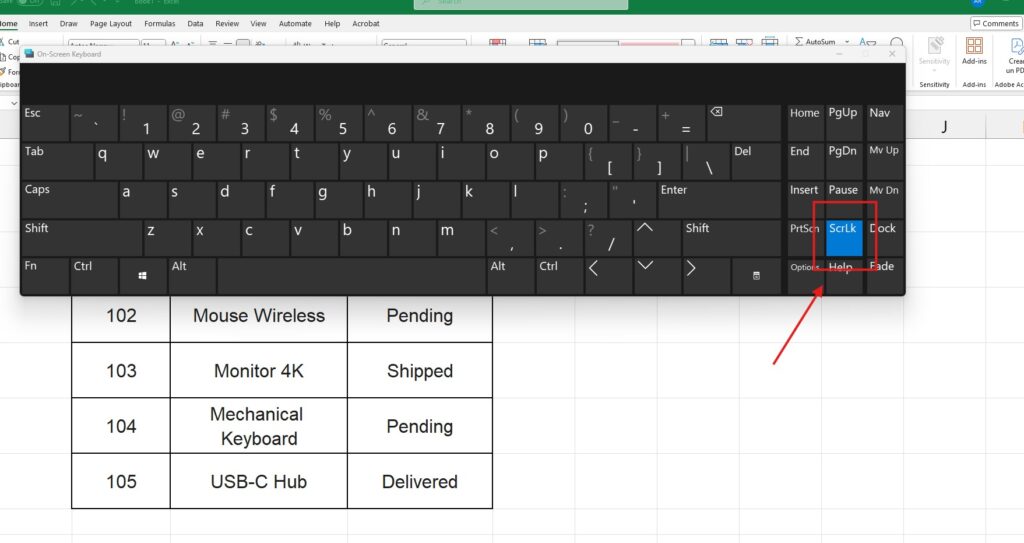
Modern laptops (like Dell XPS, HP Spectre, or Surface) often remove this key to save space. If you don’t have the key, you must use the On-Screen Keyboard.
- Click the Windows Start button.
- Type “On-Screen Keyboard” and open the app.
- Look at the layout. You will see a key named ScrLk illuminated in blue (meaning it is active).
- Click it to turn it off.
- Close the On-Screen Keyboard.
Cause 2: Sticky Keys or Filter Keys (Windows Settings)
Sometimes, Windows Accessibility features interfere with Excel. If “Sticky Keys” is enabled, Windows might think you are holding down a control key when you aren’t.
The Fix:
- Press the Shift key 5 times rapidly.
- A window asking “Do you want to turn on Sticky Keys?” might pop up. Click No or Disable.
- Go to Windows Settings > Accessibility > Keyboard.
- Ensure Sticky Keys and Filter Keys are both turned OFF.
Disabling these Windows settings is often the hidden solution for arrow keys not working in Excel properly.
Cause 3: Freeze Panes is “Trapping” You
Sometimes, users report arrow keys not working in Excel, but the cursor is actually moving behind a frozen pane.
If you have frozen the top 50 rows and you are currently in row 100, pressing “Up” might move the cursor to row 99, but if the screen is locked, you won’t see it happen.
The Fix:
- Go to the View tab on the Ribbon.
- Look for the Freeze Panes dropdown.
- Select Unfreeze Panes.
- Zoom out (Ctrl + Mouse Wheel) to check where your cursor actually is.
Cause 4: Conflict with Excel Add-ins
If Scroll Lock is off and your panes are unfrozen, but the keys are still dead, an Add-in might be “stealing” the keystrokes. Some analytic tools override standard Excel shortcuts.
How to Diagnose (Safe Mode):
- Close Excel completely.
- Hold the Ctrl key and click the Excel icon to launch it.
- Excel will ask: “Do you want to start in Safe Mode?” Click Yes.
- Test the arrow keys.
- If they work in Safe Mode: The problem is an Add-in. Go to File > Options > Add-ins and disable them one by one until you find the offender.
- If they don’t work: The issue is likely system-wide (see Cause 5).
Safe Mode allows you to test if the issue of arrow keys not working in Excel is caused by a third-party plugin.
Cause 5: You Are in “Edit Mode”
This happens to beginners often. If you are currently typing inside a cell (the cursor is blinking inside the text), the arrow keys will move the text cursor left and right within the word. They will not move you to the next cell.
The Check: Look at the bottom left corner of your Excel window (the Status Bar).
- If it says Edit, you are inside a cell. Press Enter or Esc to get out.
- If it says Ready, you should be able to move.
For Mac Users (Apple Keyboards)
The issue of arrow keys not working in Excel affects Mac users too, even without a physical Scroll Lock key.
The Fix:
- On an extended Mac keyboard (with numbers), press F14 (this is usually assigned to Scroll Lock).
- If you have a MacBook (no F14), try pressing Fn + Shift + F12.
- Pro Tip: If nothing works, run this simple AppleScript snippet to force it off:
- Open “Script Editor” (Cmd + Space, type Script Editor).
- Paste:
tell application "Microsoft Excel" to set allow scroll to false - Press the “Play” button. Fixed.
How to Prevent This from Happening Again (The Status Bar Trick)
The most annoying part of the Scroll Lock bug is that it’s invisible. You don’t know it’s on until you try to move.
You can force Excel to show you a warning whenever Scroll Lock is active.
- Right-click on the bottom Status Bar (the green/gray bar at the very bottom of the Excel window).
- Look for Scroll Lock in the list.
- Ensure it is Checked.
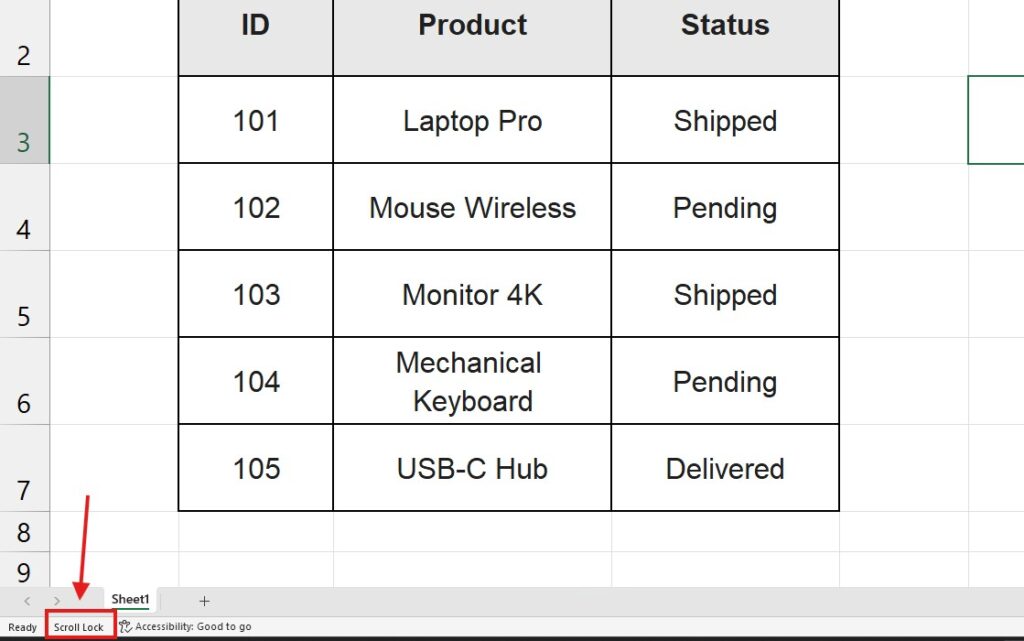
Now, whenever you accidentally hit that key, a small “Scroll Lock” label will appear at the bottom of your screen, giving you an immediate clue before you start panicking.
Conclusion
The “Ghost Cursor” phenomenon is frustrating, but harmless. 99% of the time, simply toggling the Scroll Lock (either physically or via the On-Screen Keyboard) resolves the issue instantly.
Once you fix the cursor, check our guide on Excel Keyboard Shortcuts to work faster.