
Learning how to make a copy of an excel sheet is one of the most useful skills for saving time. You have just spent hours creating the perfect template for a monthly report. It has complex formulas, conditional formatting, and a beautiful chart. Now, you need the exact same sheet for next month.
Do you start from scratch? Do you copy and paste all the cells manually (and risk breaking the formatting)? Absolutely not.
Learning how to make a copy of an Excel sheet properly is incredible for productivity. It ensures you never have to redo work that is already done.
While most users know the slow right-click menu method, few know the lightning-fast keyboard shortcut that pro users rely on. In this guide, we will cover the 3 best ways to duplicate your work, including moving sheets between different workbooks.
Method 1: The Lightning-Fast Shortcut (Ctrl + Drag)
This is the trick that will change how you work forever. Once you try it, you will never go back to the menus.
- Look at the sheet tabs at the bottom of your Excel window (e.g., “Sheet1”).
- Press and hold down the
Ctrlkey on your keyboard. - Click on the sheet tab you want to copy and drag it to the right (or left).
- You will see a tiny sheet icon with a small plus sign (+) appear under your cursor.
- Release the mouse button first, then release the
Ctrlkey.
Boom. Excel instantly creates an exact duplicate named “Sheet1 (2)”. It takes less than a second. This is the fastest answer to how to make a copy of an excel sheet within the same workbook.
Method 2: The Classic Right-Click Menu (Reliable)
If you prefer using menus or need more control over where the new sheet lands, this is the standard method.
- Right-click on the tab of the sheet you want to duplicate.
- Select Move or Copy… from the menu.
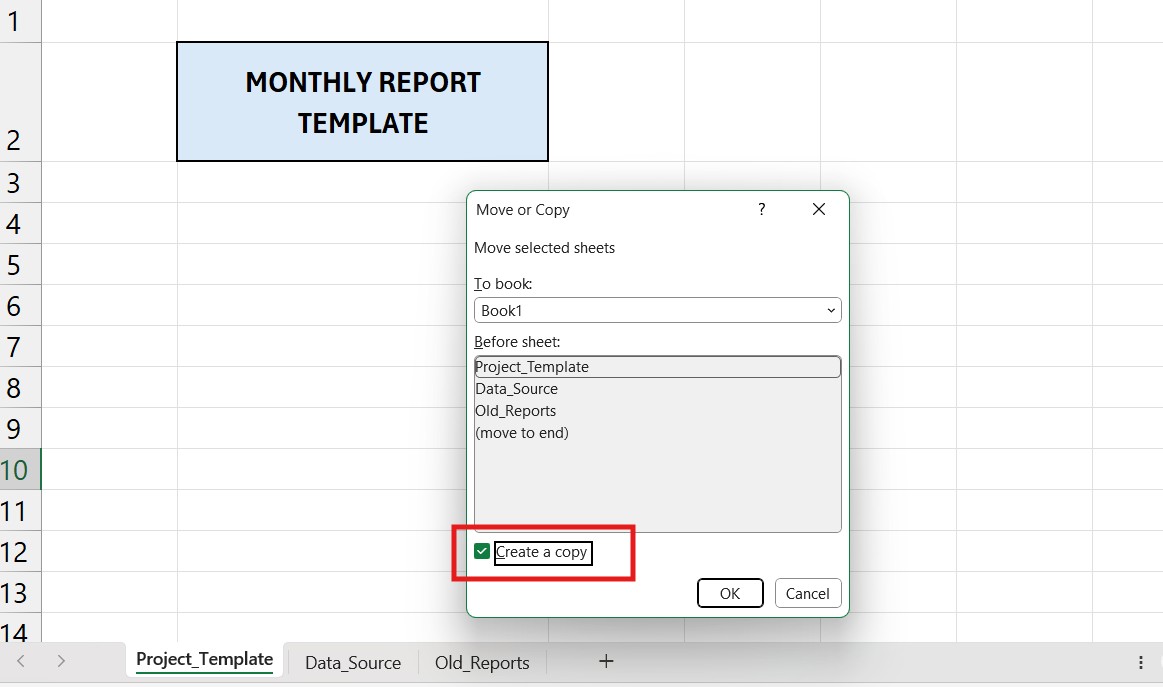
- A dialog box appears. Crucial Step: Check the box at the bottom that says “Create a copy”. (If you forget this, you will just move the sheet instead of duplicating it).
- In the “Before sheet” list, choose where you want the new sheet to appear (or select “(move to end)”).
- Click OK.
Method 3: How to Make a Copy of an Excel Sheet to Another Workbook
What if you have a great template in “Budget_2024.xlsx” and you want to copy it into a totally new file called “Project_X.xlsx”?
You can do this easily without copy-pasting cells.
- Open both Excel files (the source file and the destination file).
- Go to the source file (the one with the sheet you want to copy).
- Right-click the sheet tab and select Move or Copy…
- In the dialog box, look at the top dropdown menu labeled “To book:”.
- Click it and select the name of your destination file (e.g., “Project_X.xlsx”).
- Don’t forget: Check the “Create a copy” box at the bottom.
- Click OK.
Your sheet will magically jump from one file to the other, keeping all formatting and formulas intact.
Troubleshooting: Why Can’t I Copy My Sheet?
For technical details on limitations, you can check the official Microsoft Support guide on moving or copying worksheets. Sometimes the “Move or Copy” option is grayed out or fails. Here are the common culprits:
- Protected Workbook: If the workbook structure is protected with a password, you cannot add, delete, or move sheets. You need to unprotect it first (Review tab > Protect Workbook).
- Excel Tables: If your sheet contains Official Excel Tables containing a lot of data, sometimes duplicating it can cause name conflicts. Try converting the table to a range first if it gives you errors.
Conclusion
Knowing how to make a copy of an Excel sheet efficiently is one of those small skills that yields massive time savings over a year.
Stop rebuilding templates from scratch. Use the Ctrl + Drag shortcut for instant duplicates within the same file, and the Move or Copy menu to transfer your best work between different projects.
Now that your sheets are organized, make sure your data inside them looks professional too. Check out our guide on How to Add Bullet Points in Excel to format your lists perfectly.