
Artificial Intelligence has finally arrived in our spreadsheets. If you have noticed a colorful new icon on your ribbon and wondered how to use Copilot in Excel, you are looking at the biggest change to data analysis in decades.
Microsoft Copilot is not just a chatbot; it is a data analyst that lives inside your workbook. It can write complex formulas, generate professional charts, and even write Python code to forecast trends—all from a simple text command.
In this guide, we will walk you through exactly how to enable it, the strict requirements to make it work (that most people miss), and 5 real-world prompts to transform your productivity.
Prerequisites: Why is Copilot Grayed Out?
Before we start, let’s solve the most common frustration. Many users try to use Copilot and find the button disabled. To learn how to use Copilot in Excel, you first need to meet these three conditions:
- License: You need a Microsoft 365 Business or Enterprise license with the Copilot add-on.
- File Location: Your Excel file must be saved on OneDrive or SharePoint. It does not work on local offline files yet.
- The Golden Rule: Your data must be formatted as an Excel Table.
- How to fix it: Select your data range and press Ctrl + T (or go to Insert > Table). Copilot cannot “see” your data unless it is inside a structured table.

Pro Tip: AI is only as smart as the data you give it. If your table has repeated or messy information, Copilot might give you wrong insights. Before starting your analysis, we recommend you verify your data is clean by learning How to remove duplicate rows in Excel.
For a complete guide on version compatibility and features, check the official Microsoft guide: Get started with Copilot in Excel.
Step 1: How to Enable Copilot
Once your file is on OneDrive and your data is in a Table:
- Go to the Home tab on the ribbon.
- Look for the Copilot icon on the far right.
- A chat pane will open on the right side of your screen. This is your command center.

Top 5 Ways to Use Copilot in Excel (With Prompts)
Now that you are set up, what can you actually do? Here are the best use cases for 2025.
1. Generate Complex Formulas Instantly
Stop Googling “how to do X formula”. Just tell Copilot what you need in plain English.
- Scenario: You have a “Sales” column and a “Cost” column. You want to know the profit margin.
- Prompt: “Calculate the profit margin percentage by subtracting Cost from Sales and dividing by Sales. Add this as a new column.”
- Result: Copilot will generate the formula
=[@Sales]-[@Cost]/[@Sales], show you a preview, and ask if you want to insert the column.
2. Visualize Data with One Click
Creating charts manually takes time. Copilot can analyze your table and suggest the best visualization.
- Prompt: “Show me a chart of Sales Trends over time broken down by Region.”
- Result: Copilot will generate a Line Chart or Bar Chart in a floating window. Click “Add to Sheet” to insert it instantly.
3. Highlight Key Information (Conditional Formatting)
You can use Copilot to spot outliers or trends visually without navigating the menus.
- Prompt: “Highlight the top 10% of values in the Revenue column in green and mark any negative values in red.”
- Result: It automatically applies Conditional Formatting rules to your table.
4. The “Think Deeper” Analysis
New in late 2024/2025, Copilot can answer vague questions by “thinking” about your data structure.
- Prompt: “Analyze this dataset and give me 3 key insights about why our sales are dropping in Q4.”
- Result: Copilot scans the rows, looks for correlations, and might return a text summary like: “Sales dropped in Q4 primarily in the ‘Electronics’ category, which coincides with a 15% price increase in that period.”
5. Advanced: Python in Excel Integration
For power users, Copilot can now write Python code directly in Excel to perform advanced statistics or machine learning.
- Prompt: “Forecast sales for the next 6 months using Python linear regression.”
- Result: Copilot will write the Python script, run it in the secure cloud, and return a forecast graph—no coding knowledge required from you.
Best Practices for Prompting
To master how to use Copilot in Excel, you need to learn to “speak” its language.
- Be Specific: Instead of “Fix this,” say “Remove all rows where Column C is empty.”
- Iterate: Copilot is a conversation. If the first chart isn’t right, reply: “Change it to a Pie Chart and show labels.”
- Verify: AI can make mistakes (hallucinations). Always double-check the formula it suggests before sending the report to your boss.
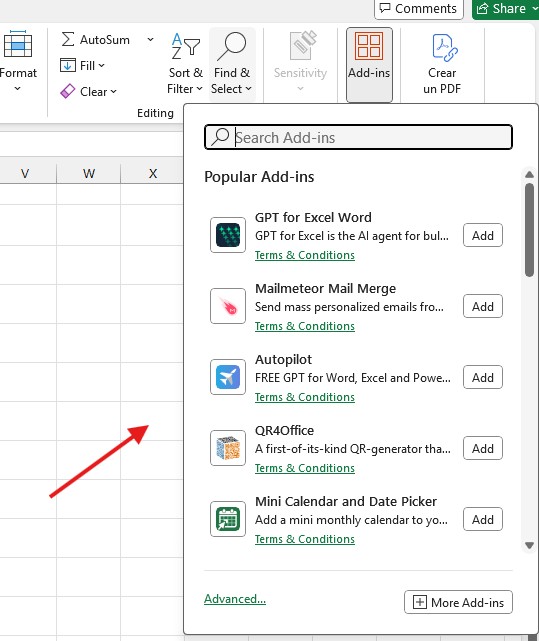
Common Error: Add-inds Copilot
Common Mistake: Do NOT search in “Add-ins” If you search for “Copilot” in the Add-ins store, you will see third-party tools (like Ghostwriter or Spreadsheet AI). These are not the official Microsoft Copilot. The official tool is built directly into Excel and does not require manual installation. If you don’t see the button on your Home ribbon, checking the Add-ins store won’t fix it—you likely need to check your license.
Frequently Asked Questions (FAQ)
Is Copilot in Excel free? No, currently it requires a paid subscription to Microsoft 365 Copilot (Commercial or Pro for individuals).
Why does Copilot say “I need a table”? Copilot is designed to work with structured data. It cannot analyze loose cells scattered around the sheet. Select your data and press Ctrl + T to fix this.
Can Copilot write VBA Macros? As of 2025, Copilot excels at Formulas and Python, but for VBA macros, it provides the code in the chat for you to copy-paste into the VBA Editor manually. It cannot “run” macros for you for security reasons.
Conclusion
Knowing how to use Copilot in Excel is no longer just a “nice-to-have” skill; it is becoming a requirement for modern data analysis. By offloading the boring tasks—like writing complex formulas or formatting tables—to AI, you free up your time to focus on what really matters: making decisions based on the data.
Open your spreadsheet, press that Copilot button, and start chatting with your data today.