
Dealing with Circular References in Excel can be frustrating. You open your spreadsheet and suddenly get a scary warning message:
“There are one or more circular references where a formula refers to its own cell either directly or indirectly.”
Your calculations stop working. Some cells show 0. You see weird blue arrows pointing everywhere. Don’t panic.
A Circular Reference in Excel is simply a logic loop. You told Excel to calculate Cell A using Cell B, but Cell B is trying to calculate itself using Cell A. It is an infinite cycle that Excel cannot solve.
In this guide, we will show you exactly how to find, trace, and fix Circular References in Excel in seconds using built-in detective tools.
What are Circular References in Excel?
Imagine you are in Cell A1. You type the formula: =A1 + 10.
Excel tries to calculate the result, but to do so, it needs the value of A1. But A1 is the formula itself. It creates an infinite loop. This is a Direct Circular Reference.
An Indirect Circular Reference is harder to spot:
- Cell A1 needs Cell B1.
- Cell B1 needs Cell C1.
- Cell C1 needs Cell A1.
- Loop closed.
Step 1: How to Find the Error Instantly
Usually, Excel tells you the address of the error in the bottom status bar, but if you have multiple sheets, this can be tricky.
The Error Checking Tool:
- Go to the Formulas tab on the top ribbon.
- Look for the Formula Auditing group (on the right).
- Click the arrow next to Error Checking.
- Hover over Circular References.
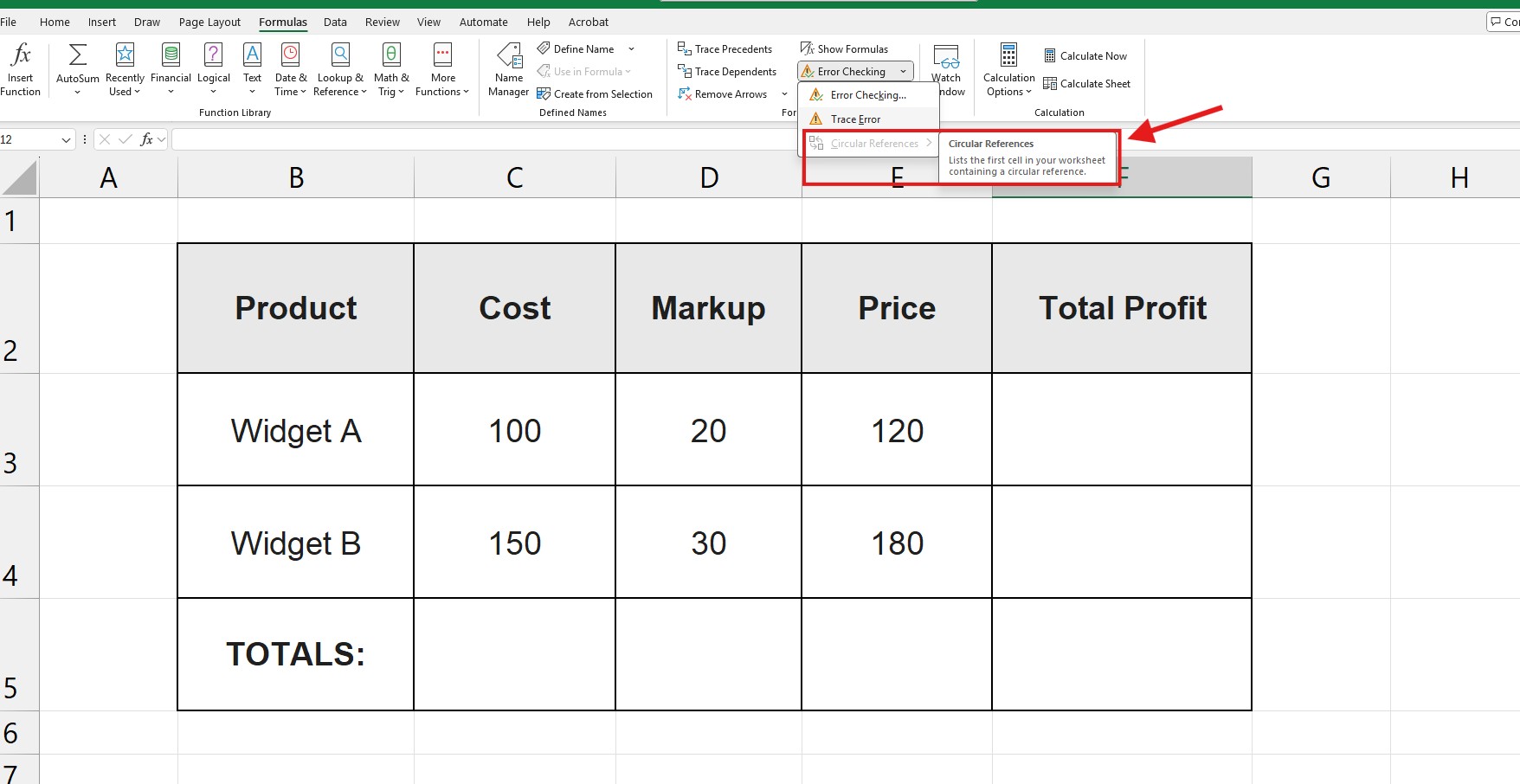
Excel will display a flyout menu listing the exact cell addresses (e.g., $D$4) causing the loop. Click on the address to jump straight to the crime scene.
Step 2: Visualizing the Loop (The Blue Arrows)
Once you are at the cell, it might not be obvious why it is broken. You need to see the relationships to fix these Circular References in Excel.
- Select the cell causing the error.
- Go to Formulas > Trace Precedents.
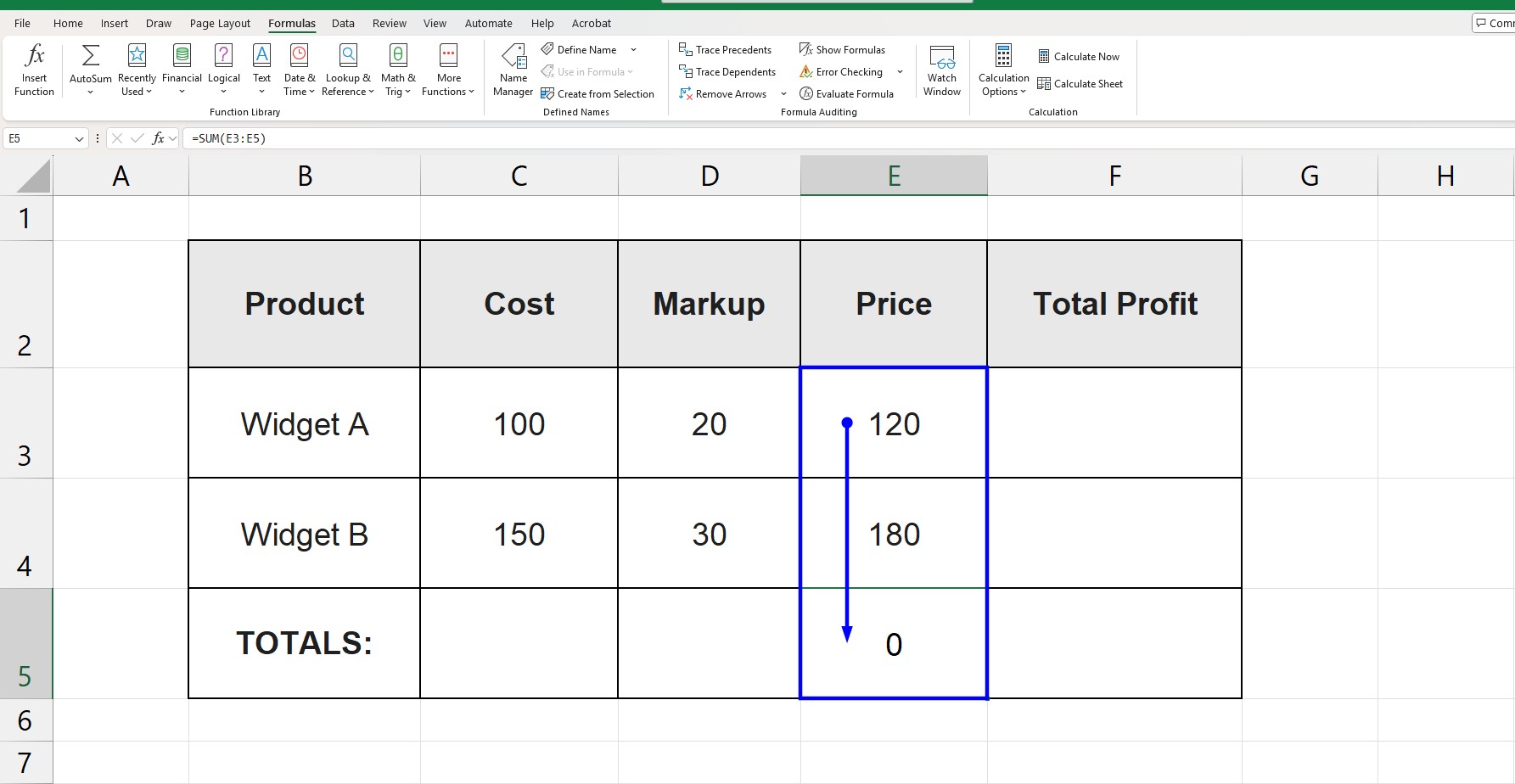
Excel will draw blue arrows showing you which cells are feeding data into your current cell. Follow the arrows backwards. If you see an arrow pointing back to the cell you started from, you have found the loop.
Step 3: Common Causes & How to Fix Them
Case A: The “SUM” Accident (Most Common)
You want to sum a column from row 1 to 10. You put the total in row 11.
- Wrong Formula:
=SUM(A1:A11)(inside cell A11). - The Fix: You included the total cell inside the sum range. Change it to
=SUM(A1:A10).
Case B: The Indirect Loop
You are calculating a “Bonus” based on “Total Profit”, but “Total Profit” is calculated by subtracting the “Bonus”.
- The Fix: You must break the logic chain. Calculate the Bonus on “Gross Profit” (before bonus deduction) instead.
Advanced: When Should You USE Circular References?
Believe it or not, sometimes you want a loop. Engineers and financial modelers use Iterative Calculation to solve complex algebraic equations that need to run multiple times to find a stable answer.
How to enable it (Only if you know what you are doing):
- Go to File > Options.
- Click Formulas.
- Check the box Enable iterative calculation.
- Set “Maximum Iterations” (e.g., 100).
Now Excel will try to calculate the formula 100 times until it finds a result, instead of showing an error.
If you want to learn more about the technical side of how Excel handles these iterations, you can read the official Microsoft guide on Circular References.
Frequently Asked Questions (FAQ)
Why is the status bar showing “Circular References” but no cell address? This means the error is on a different sheet than the one you are looking at. Use the Formulas > Error Checking menu to find the specific sheet and cell.
Can a circular reference crash Excel? Yes. If you have automatic calculation turned on and a complex loop, Excel might freeze because it is trying to calculate infinity. Press Esc to stop the calculation.
Prevent errors before they happen Clean data leads to fewer errors. Ensure your inputs are correct by learning How to Remove Duplicates in Excel and keeping your database organized.